
Deploying Windows 11 in an enterprise environment has always come with a small annoyance: You spend time building a clean, controlled device via Intune and then you test your deployment, log in and... get greeted with apps nobody asked for.
Games, consumer apps, distractions - you name it.
Until now, the workaround was doable and worked but required scripts, custom images, or post-deployment cleanup - But Microsoft is finally fixing this.

With the latest Windows 11 updates, you can now dynamically remove pre-installed apps using policy on devices running Windows 11, version 25H2 or version 24H2 - no scripts, no hacks, no maintenance overhead.
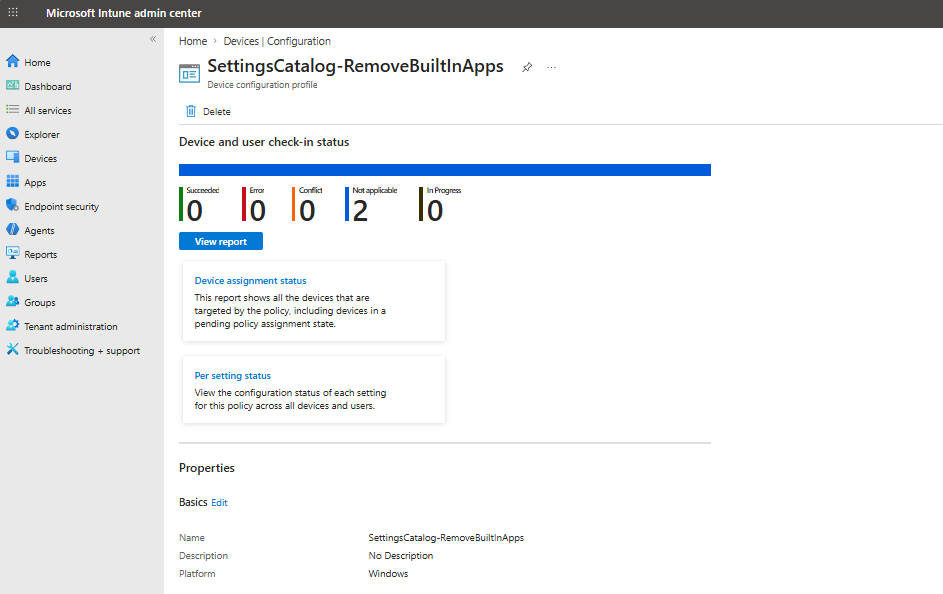
 ingridallen
Technical Overview
Microsoft introduced a new approach that allows admins to remove pre-installed Microsoft Store apps via policy, instead of relying on scripts or custom provisioning.
This means:
- No more PowerShell cleanup scripts
- No more image maintenance
- No more inconsistent results
Now, Microsoft introduces a policy-driven model:
👉 Define what should be removed
👉 Assign the policy
👉 Windows takes care of the rest
This aligns with Microsoft’s shift toward declarative, policy-based management similar to what we’ve already seen with other Intune features.
How It Works
At the core you can use a Settings Catalog, OMA-URI or GPO policy that allows you to:
- Remove default Microsoft Store apps
- Extend removal using Package Family Names (PFNs)
- Apply changes dynamically across managed devices
Settings Catalog
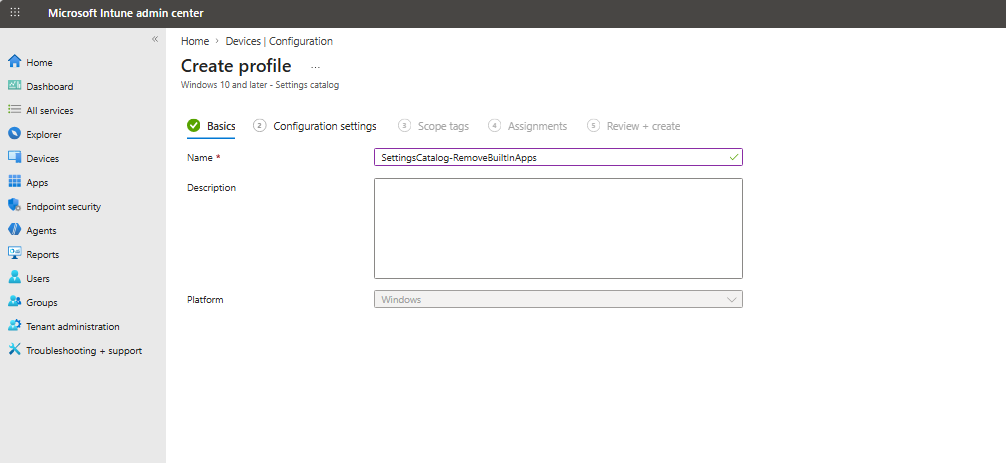
The improvements on those policies are available starting with the April 2026 Windows non-security update. Additional Intune capabilities are coming - Your Tenant might not have been enrolled with the new policy or the dynamic list option yet. When this feature becomes available in your tenant, search for "Remove Default Microsoft Store packages" in the settings picker to locate it:
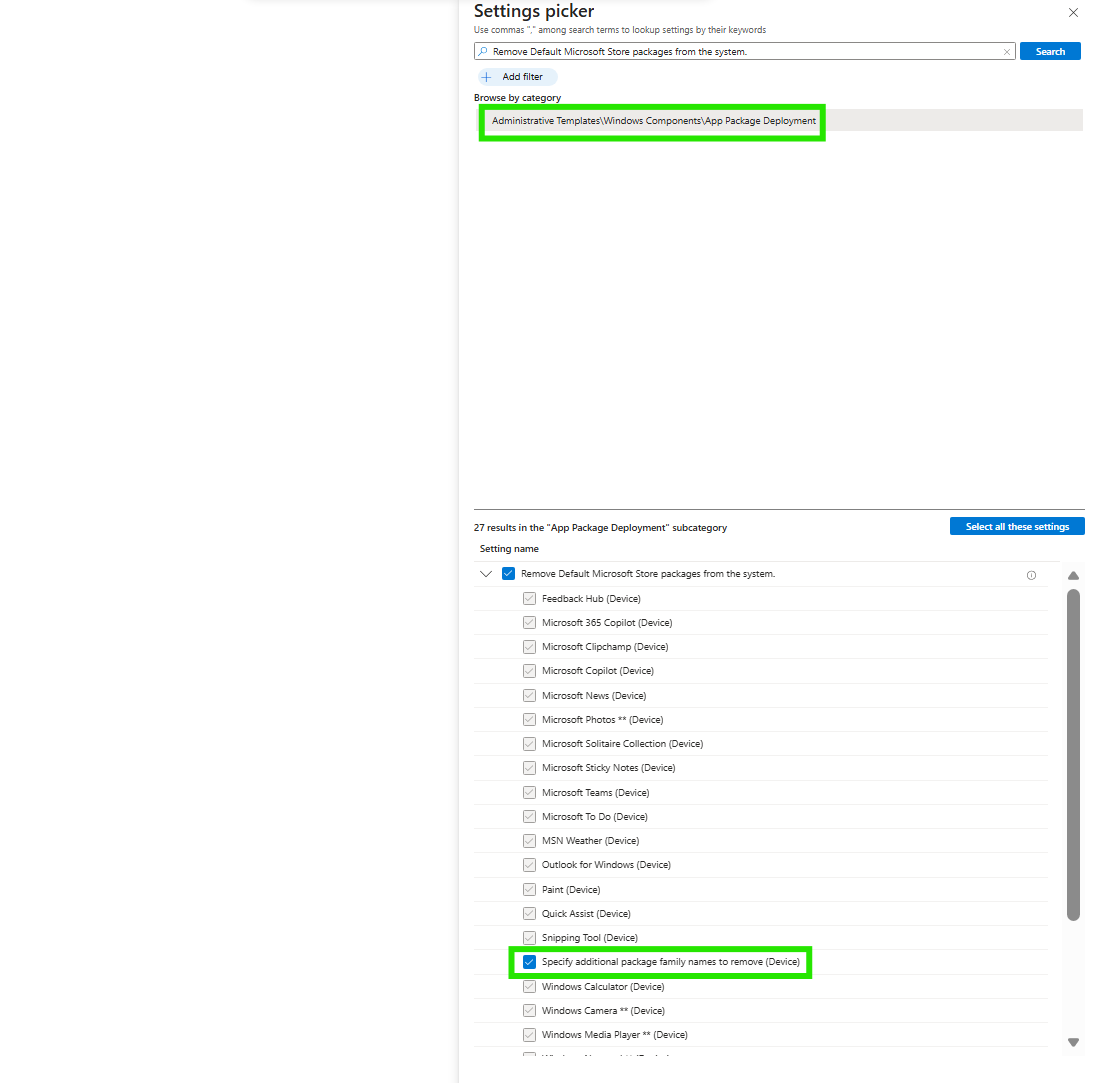
After that you can select which app you want to be removed - additionally you can specify additional PFN's to be removed:
Find the Package Family Name of an Appx Package
You can find the app's PFN using PowerShell. Use the following example, replacing "Notepad" with your desired app:
Get-AppxPackage *Notepad* | Select-Object PackageFamilyName
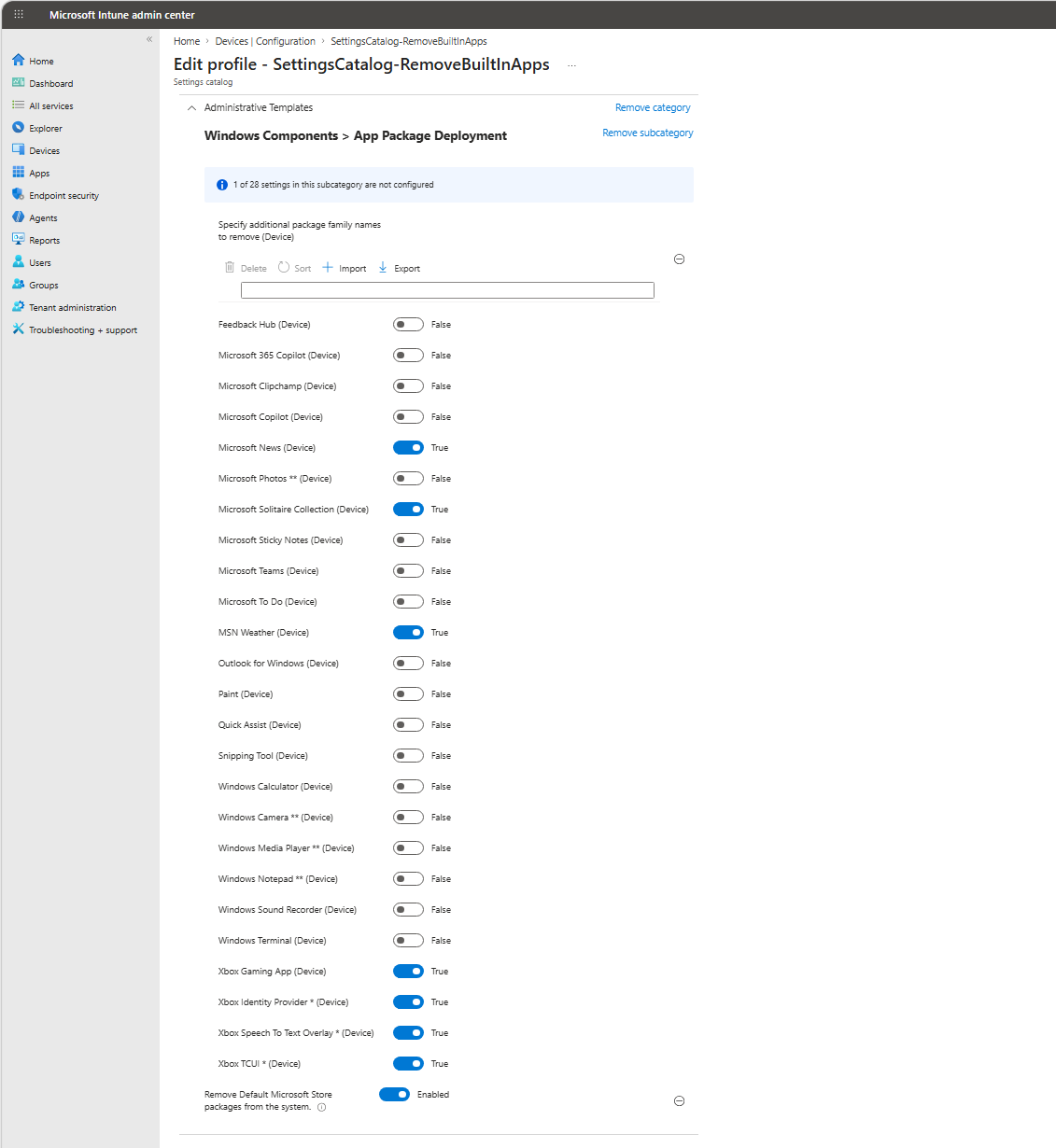
During rollout of the updated RemoveDefaultMicrosoftStorePackages policy, devices in your environment might support different CSP versions.
If a device receives a policy that doesn't match its supported schema, the policy might fail to parse and won't be applied.To prevent this, maintain your existing policy for older devices. Create a separate policy that includes the new dynamic app removal list for newer devices.
Use Intune assignment filters or targeting rules (such as OS version or update rings) to help ensure that each device receives a compatible policy.Once all devices are updated, and Intune fully supports the new CSP, you can safely consolidate policies.
OMA-URI
I do not recommend using the OMA-URI way unless you need to as it's ADMX-backed policy uses an XML payload to define which applications should be removed.
The XML payload contains a static list of application identifiers (prefixed with data id) along with their corresponding values. Applications set to true will be removed, while those set to false will remain untouched.
OMA-URI: ./Device/Vendor/MSFT/Policy/Config/ApplicationManagement/RemoveDefaultMicrosoftStorePackages
Data type: String
Value:
<enabled/>
<data id="WindowsFeedbackHub" value="false"/>
<data id="MicrosoftOfficeHub" value="false"/>
<data id="Clipchamp" value="false"/>
<data id="Copilot" value="false"/>
<data id="BingNews" value="true"/>
<data id="Photos" value="false"/>
<data id="MicrosoftSolitaireCollection" value="true"/>
<data id="MicrosoftStickyNotes" value="true"/>
<data id="MSTeams" value="false"/>
<data id="Todo" value="false"/>
<data id="BingWeather" value="true"/>
<data id="OutlookForWindows" value="false"/>
<data id="Paint" value="false"/>
<data id="QuickAssist" value="false"/>
<data id="ScreenSketch" value="false"/>
<data id="WindowsCalculator" value="false"/>
<data id="WindowsCamera" value="false"/>
<data id="MediaPlayer" value="false"/>
<data id="WindowsNotepad" value="false"/>
<data id="WindowsSoundRecorder" value="false"/>
<data id="WindowsTerminal" value="false"/>
<data id="GamingApp" value="true"/>
<data id="XboxGamingOverlay" value="true"/>
<data id="XboxIdentityProvider" value="true"/>
<data id="XboxSpeechToTextOverlay" value="true"/>
<data id="XboxTCUI" value="true"/>
<data id="DynamicRemovalList" value="Microsoft.BingNews_8wekyb3d8bbwe
Microsoft.WindowsAlarms_8wekyb3d8bbwe"/>Value of OMA-URI Config
To remove additional apps, you can add them to the “DynamicRemoval List” at the end of the payload. Multiple entries must be separated using the HTML-encoded carriage return and line feed sequence (
), which represents a new line between each application name.
But here is the important caveat:
If you create a custom OMA-URI, you must open the dynamic list entry in the registry once on each device to which the policy is targeted. This helps ensure the correct format for the items in the dynamic list:
HKEY_LOCAL_MACHINE\SOFTWARE\Policies\Microsoft\Windows\Appx\RemoveDefaultMicrosoftStorePackages
officedocspr5Group Policy
For my GPO friends, I have a short how to on how to configure the GPO which removes the desired PFN's from your endpoint:
- Find the app's PFN using PowerShell. Use the following example, replacing "Notepad" with your desired app: Get-AppxPackage *Notepad* | Select-Object PackageFamilyName
- Open Group Policy Editor (gpedit.msc). Navigate to Computer Configuration > Administrative Templates > Windows Components > App Package Deployment and select Remove default Microsoft Store packages from the system.
- Add the PFN to the multi-text list under Specify additional package family names to remove. Enter one package family name per line.
If you’re interested in the GPO approach, take a look at Rudy’s blog post:
Rudy Ooms
When Is It Applied?
Once configured, change happens at provisioning or on next user sign-in.
The device uninstalls the apps you specify in the following two areas:
- The default checkbox selections
- The dynamic PFN list
Things to Consider
Before going full cleanup mode, keep a few things in mind:
- It only works on Enterprise and Education Editions
- Removing an app also removes any associated on-disk app data.
- You can't use the dynamic list to remove system components. These components aren't supposed to be removed. If you try to remove them, the policy creation will fail.
- Removed apps remain blocked from reinstallation while the policy is active.
Final Thoughts
This is one of those small features that makes our lives a bit easier :D
With this policy, we’re moving away from:
“Deploy → Fix → Script → Repeat”
toward:
“Define → Assign → Done”
So yes, if you’ve been waiting for a clean way to get rid of unwanted apps in Windows 11 - This is it.
⚠️ Disclaimer
The configurations shared in this post reflect my personal approach to solving this specific challenge. Every environment is unique, so adapt these solutions to fit your needs.
Happy configuring! 😊


