
In Microsoft environments, groups are everywhere. They grant access to SharePoint sites, Azure subscriptions, applications, file shares, and administrative roles (should be solved by PIM but you see them in the wild). But what happens when group membership becomes permanent, undocumented, and invisible?
That’s where Privileged Identity Management (PIM) for Groups comes in.
With Microsoft Entra ID, organizations can apply just-in-time (JIT) access not only to roles but also to security and Microsoft 365 groups.
Let’s break down why this matters.
The Hidden Risk of Permanent Group Membership
Many organizations already use Microsoft Entra Privileged Identity Management (PIM) to secure highly privileged roles such as Global Administrator and Application Administrator.
If you’re not leveraging PIM yet, I strongly recommend implementing it.
Niklas Tinner has you covered on how to do it right:
 Niklas Tinner
Here’s the oversight:
- Security groups grant access to production systems.
- Microsoft 365 groups provide access to sensitive Teams and SharePoint data.
- Role-assignable groups are used to delegate Azure RBAC roles.
And yet, membership is often:
- Permanent
- Not reviewed
- Not time-bound
- Not approved
This creates standing privilege, which contradicts Zero Trust principles.
What Is PIM for Groups?
PIM for Groups extends just-in-time access to:
- Security Groups
- Microsoft 365 Groups
- Role-Assignable Groups
Instead of being a permanent member, users become eligible members.
When access is needed, they:
- Activate membership
- Provide justification
- Complete MFA
- Get approval (if configured)
- Receive time-bound access
After expiration, access is automatically revoked and the member is removed from the group.
Why This Is a Game-Changer
1. Enforces Least Privilege
Users only have access when required and not 24/7.
2. Reduces Lateral Movement Risk
If an attacker compromises an account, they don’t automatically inherit high-impact group permissions by default. Apart from that you can secure them with an Authentication Context where you enforce Phishing-resistant MFA on every PIM-action.
3. Improves Audit & Compliance
Every activation is logged in Microsoft Entra ID audit logs and can be exported to Microsoft Sentinel or other SIEM solutions.
This provides traceability for ISO 27001, NIS2, FINMA, and internal governance frameworks.
Licensing Requirements
To use PIM for Groups, you need:
- Microsoft Entra ID P2 licenses
(or equivalent Microsoft 365 E5 licensing)
This is often already available in security-focused environments but underutilized.
Real-World Use Cases
There are many use cases where you can leverage Privileged Identity Management (PIM) for groups beyond just privileged role assignments.
For example, within internal IT teams, it’s common to see groups such as an "Azure Admins" group that grants elevated permissions. If you want to better secure these types of groups, PIM for Groups allows you to control and monitor membership through just-in-time access, approval workflows, and time-bound assignments.
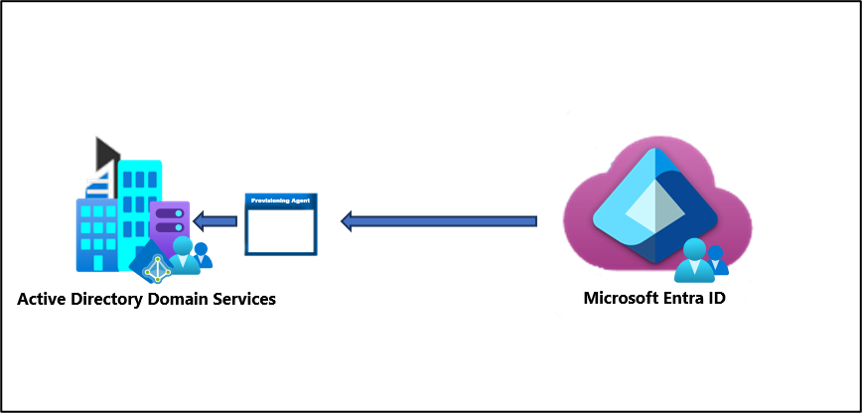
A particularly valuable use case we experienced is, when you’re working with Entra Domain Services or a traditional Active Directory environment and have Group Writeback enabled via Entra Cloud Sync.
In this setup, groups managed in Entra ID can be written back to managed/on-premises Active Directory, allowing you to extend cloud-based governance such as PIM for Groups into your on-prem AD environment.
Now, consider RDP access. Outside of leveraging it through Global Secure Access, there’s no native way - without third-party tools - to enforce Just-In-Time (JIT) access or secure it effectively.
But here’s the exciting part: With PIM for Groups, you can secure RDP access natively, enabling time-bound, on-demand permissions without relying on external solutions.
🛠 Securing RDP Access with PIM for Groups
Operations engineers can activate:
- Server access groups
- Application admin groups
- Infrastructure management groups
With:
- Ticket reference enforcement
- Approval workflows
- Time-limited access
Enhancements within the workflow you can make:
PIM for Groups supports:
- Approval workflows
- Activation duration limits
- Justification enforcement
- Ticket number requirements
- Access reviews
- Notification policies
Combined with Conditional Access, it becomes a powerful Zero Trust control layer.
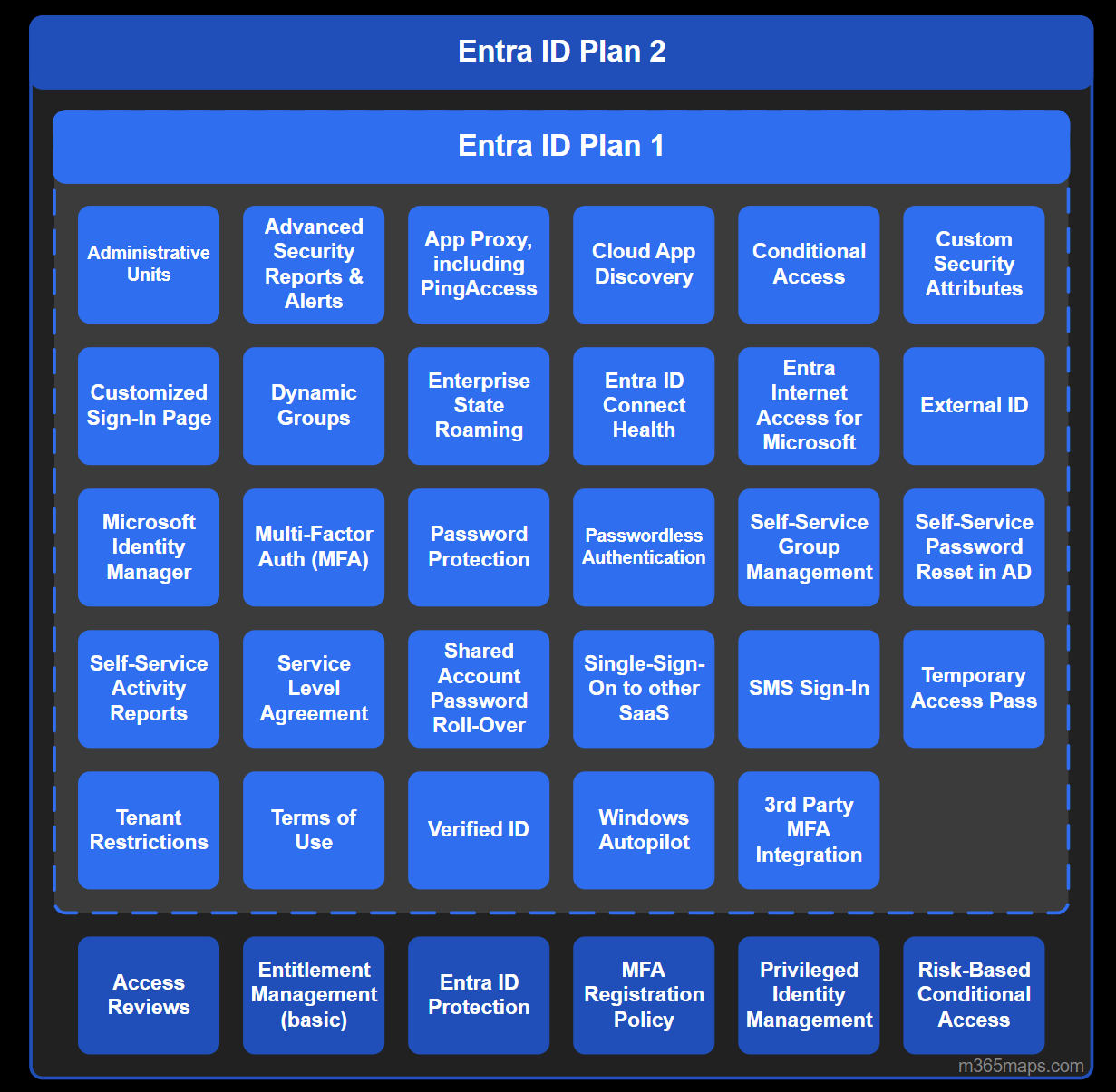
1. Checking Licencing Requirements
For each user leveraging PIM or PIM for Groups you need an Entra P2, so check that before heading into the configuration
2. Setting up Authentication Context + CA Policy
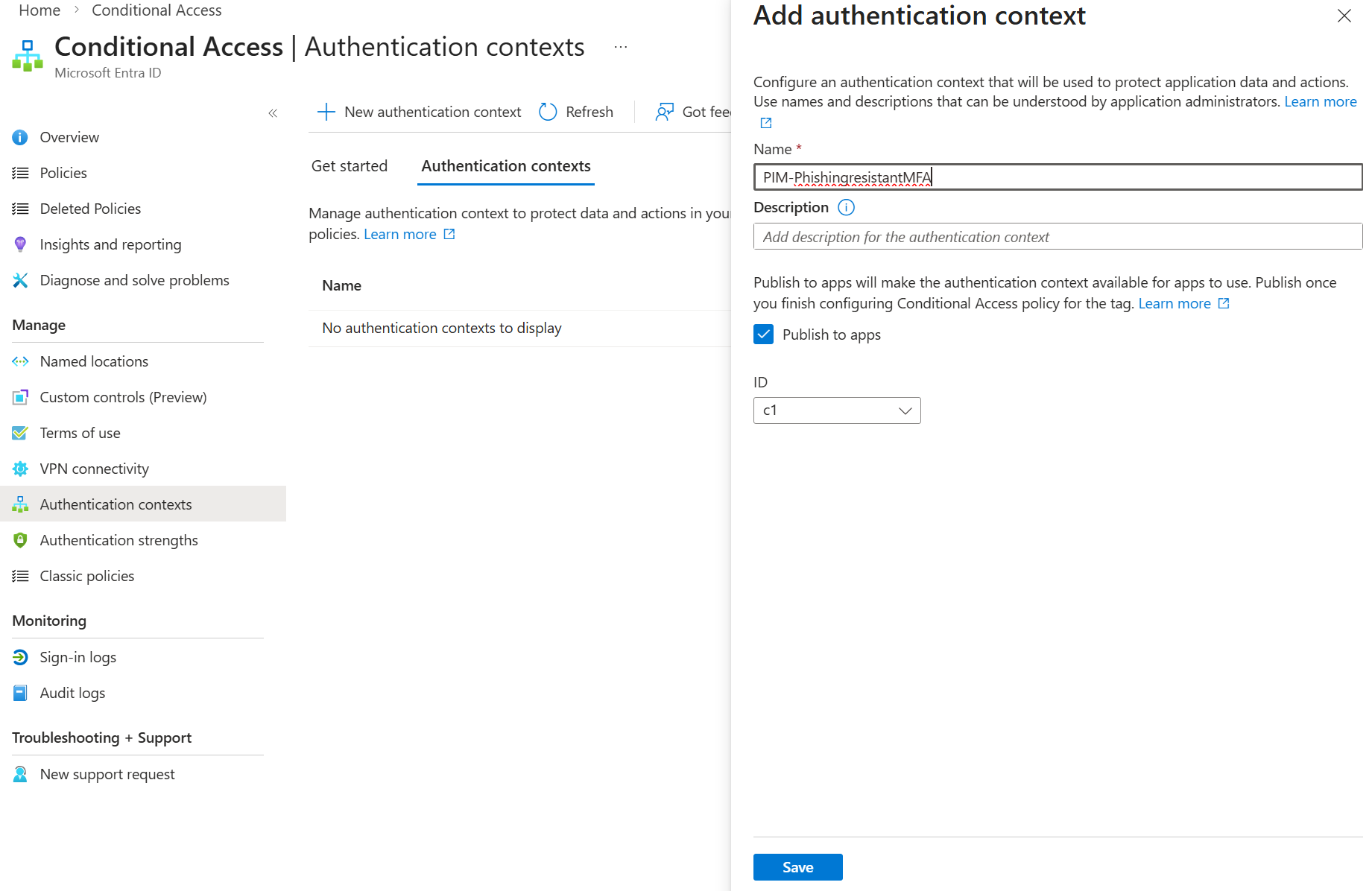
Before we start with the PIM configuration, we make a smart step and pre-configure our CA Policy for requiring phishing-resistant MFA while
Under Conditional Access navigate to Authentication Contexts and create a new authentication context:
After that, go ahead and create a new conditional access policy (scoped to all users) and select the created authentication context:
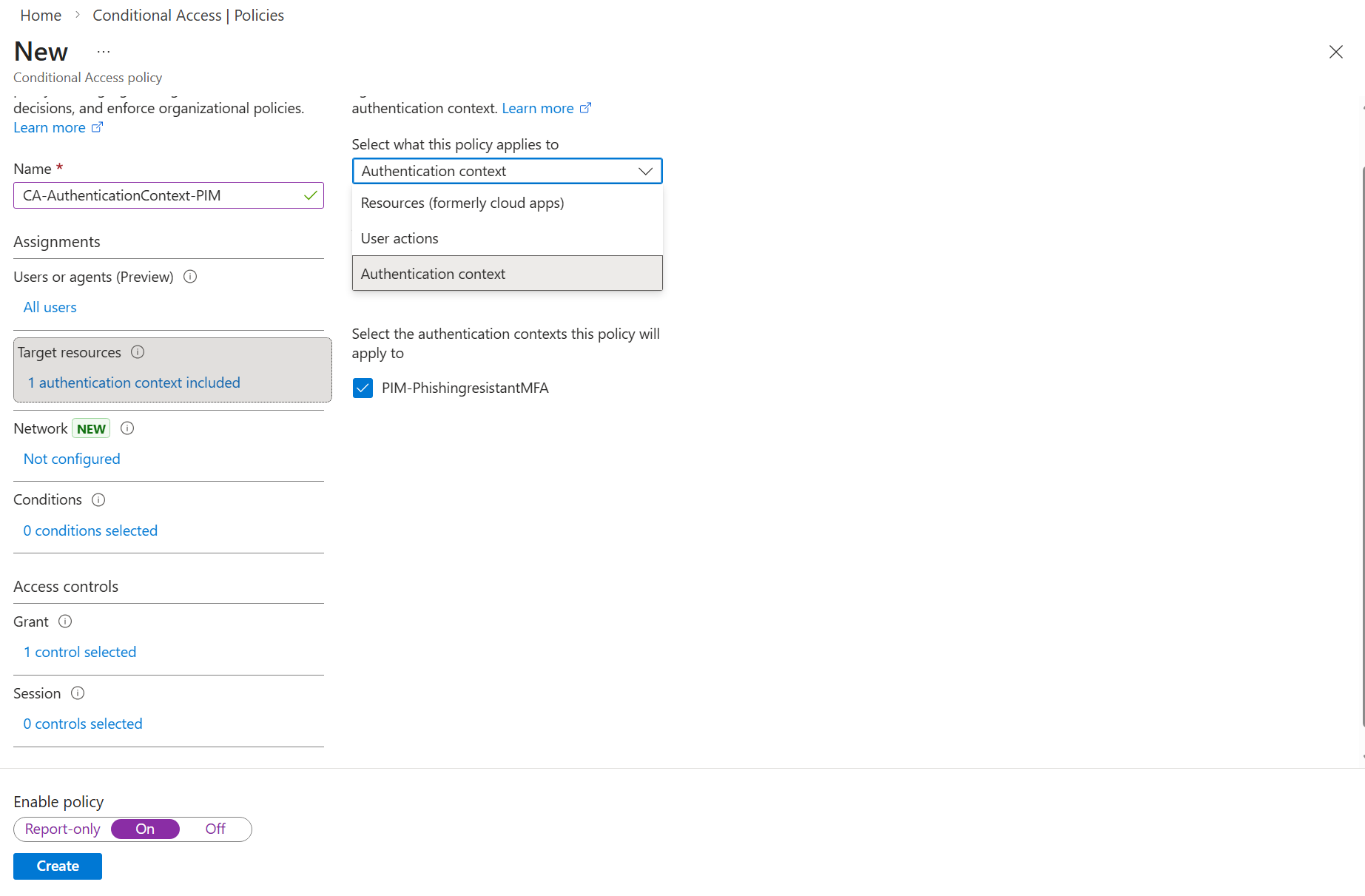
You can now configure the Grant control to require a specific authentication strength. Whenever possible, choose a phishing-resistant method to significantly increase security. If the required option isn’t available, navigate to the Authentication Strengths settings. There, you can review the predefined strengths or create a custom one tailored to your requirements, which will then become selectable in your policy.
Finally, configure the Sign-in frequency to Every time. This ensures that phishing-resistant MFA is enforced for each PIM activation, requiring strong authentication.
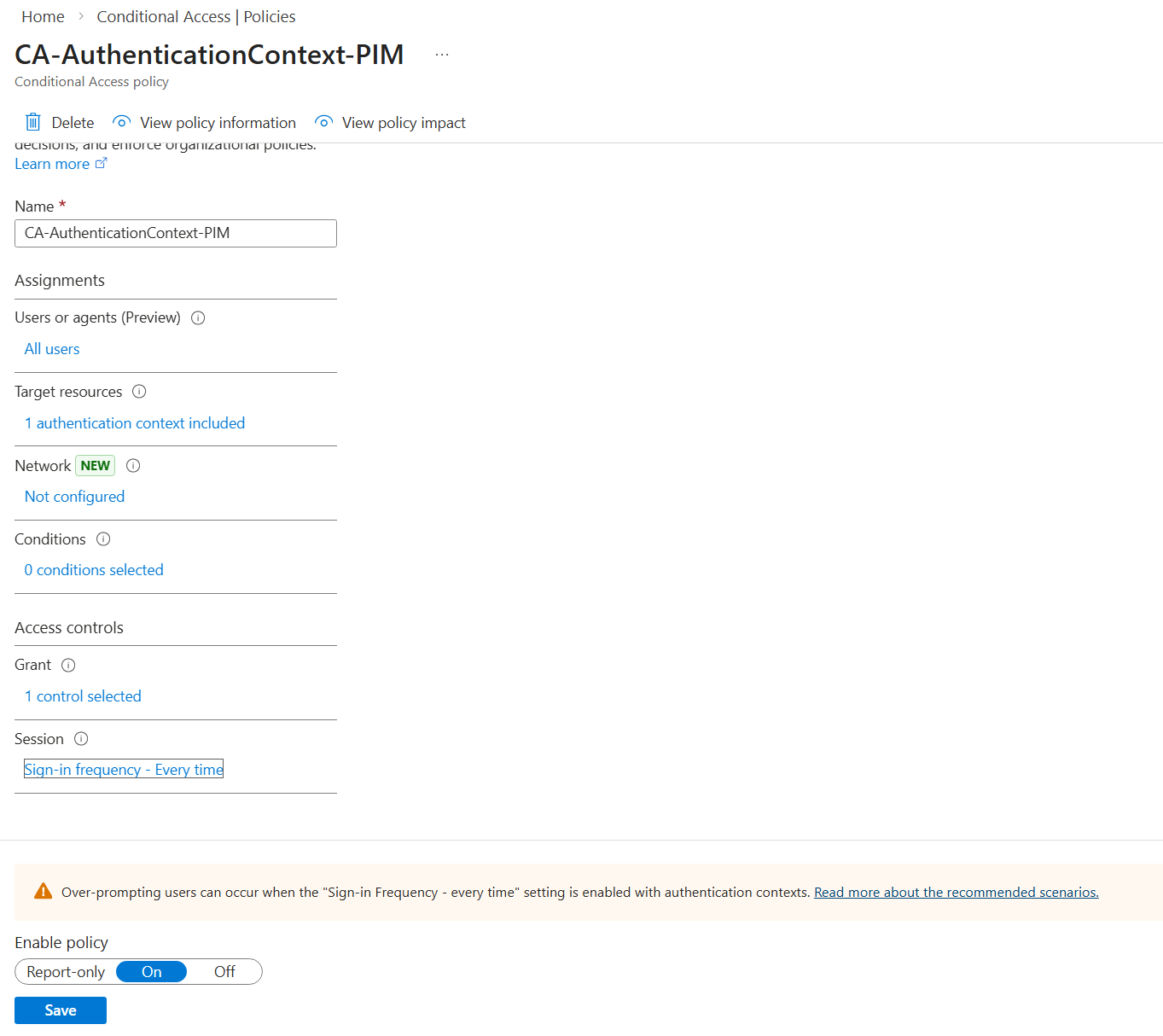
After that, set the CA Policy to On and head back to the PIM settings.
2. Configuring the group
The group configuration is straightforward: create a security group, then navigate to the Privileged Identity Management section to configure the required settings.
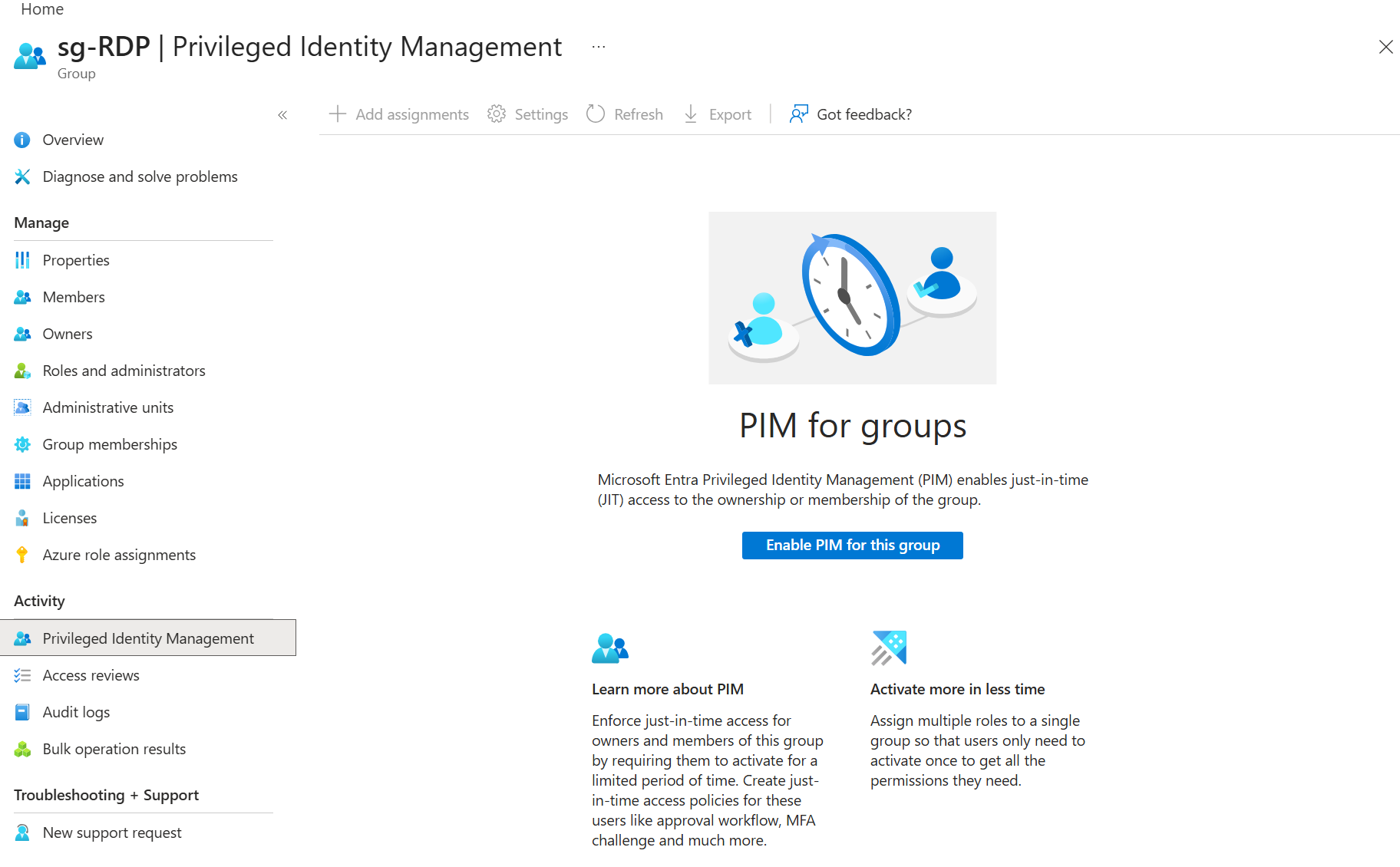
Whenever you assign privileged roles to a group (whether using PIM or not), ensure that you enable the immutable switch during group creation by selecting "Microsoft Entra roles can be assigned to the group." This setting ensures that only Privileged Role Administrators and Global Administrators can assign roles to the group. If this option is not enabled, it may lead to potential privilege escalation.
After enabling it, head to Settings > Member
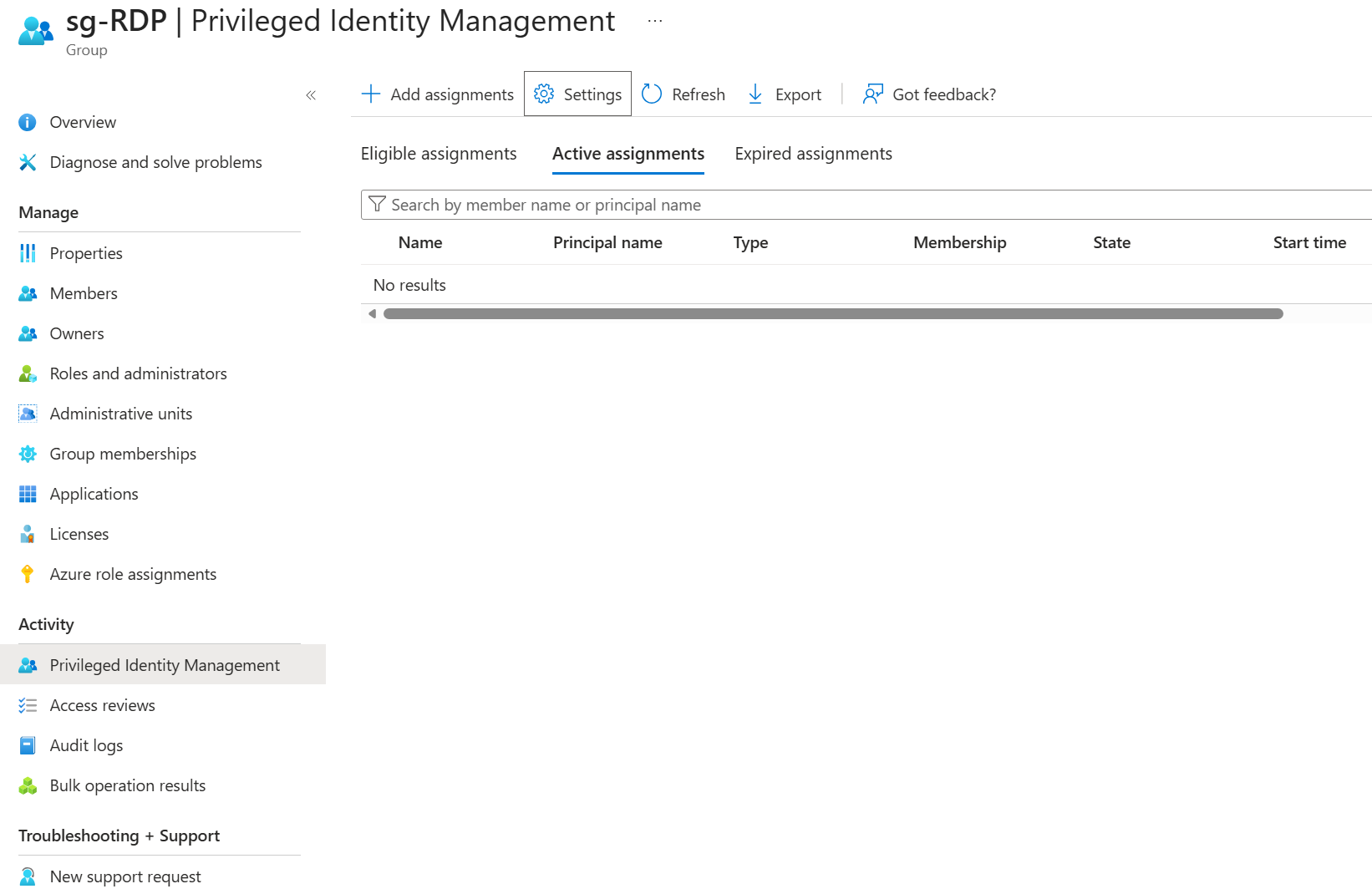
Now you can configure the settings for PIM for this group and select the created authentication context and set the workflow settings - if you have configured PIM for privileged roles, this process is similar to it
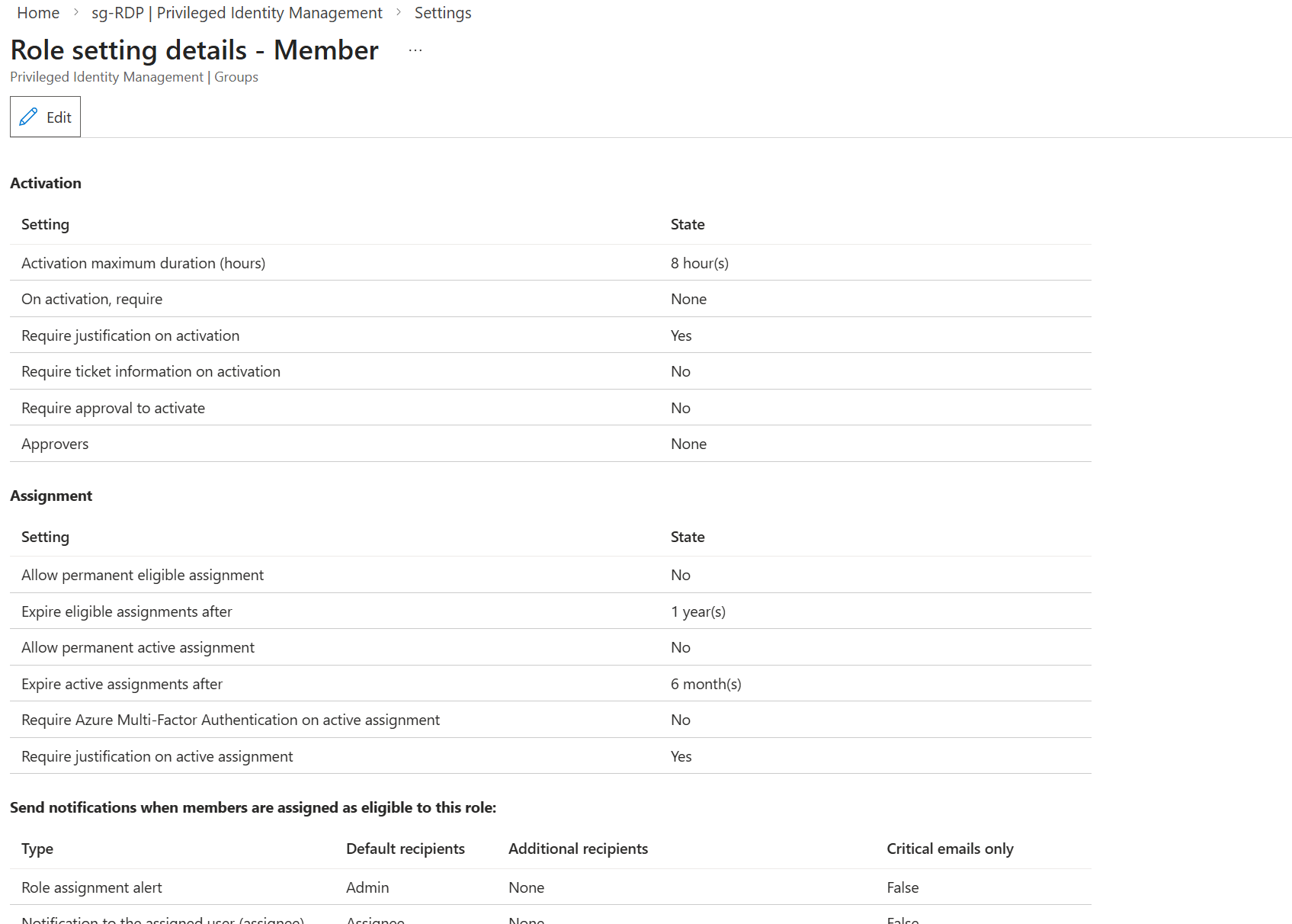
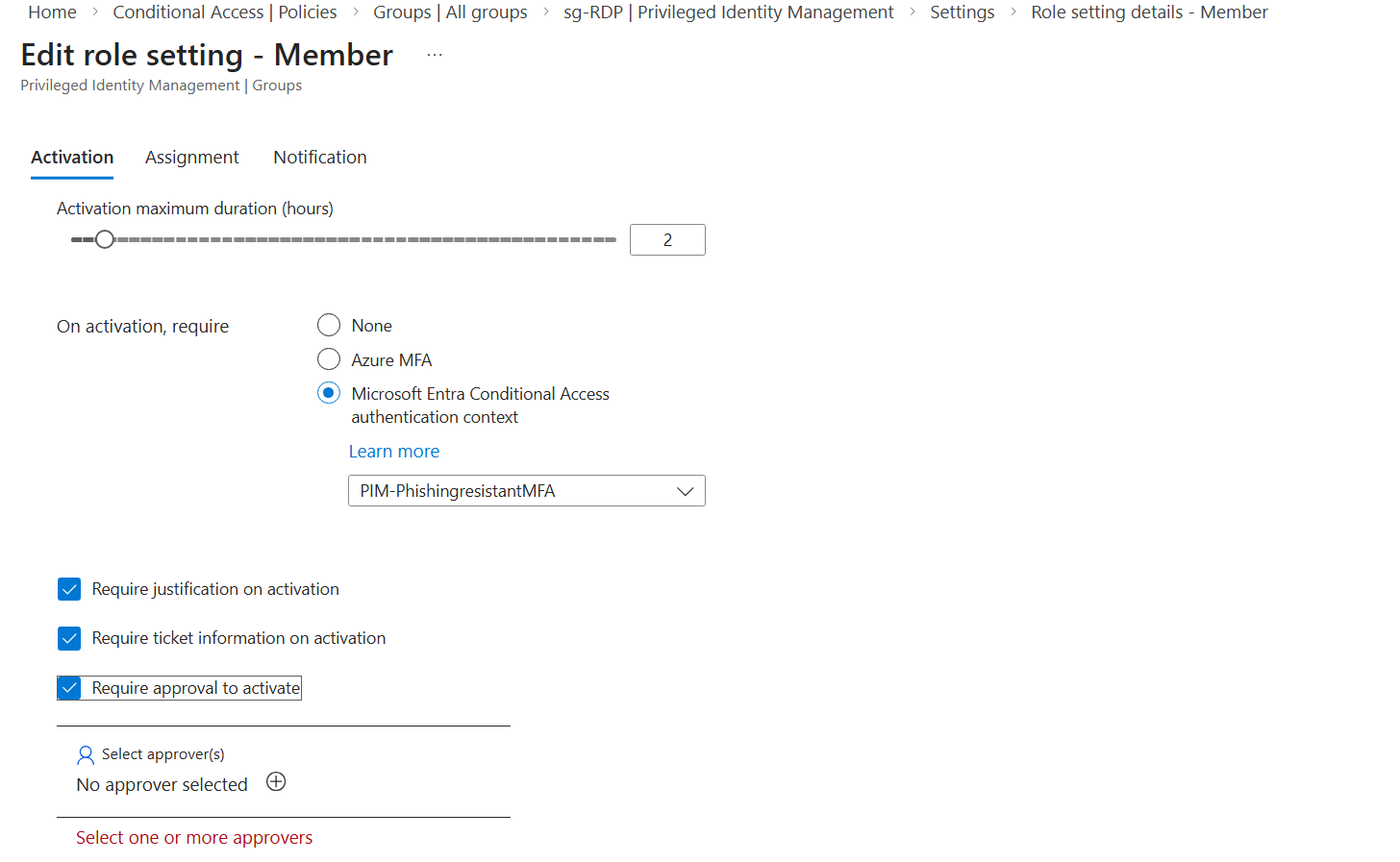
Configure the Assignment settings according to your governance policies. For lifecycle and compliance reasons, I recommend avoiding permanent active assignments.
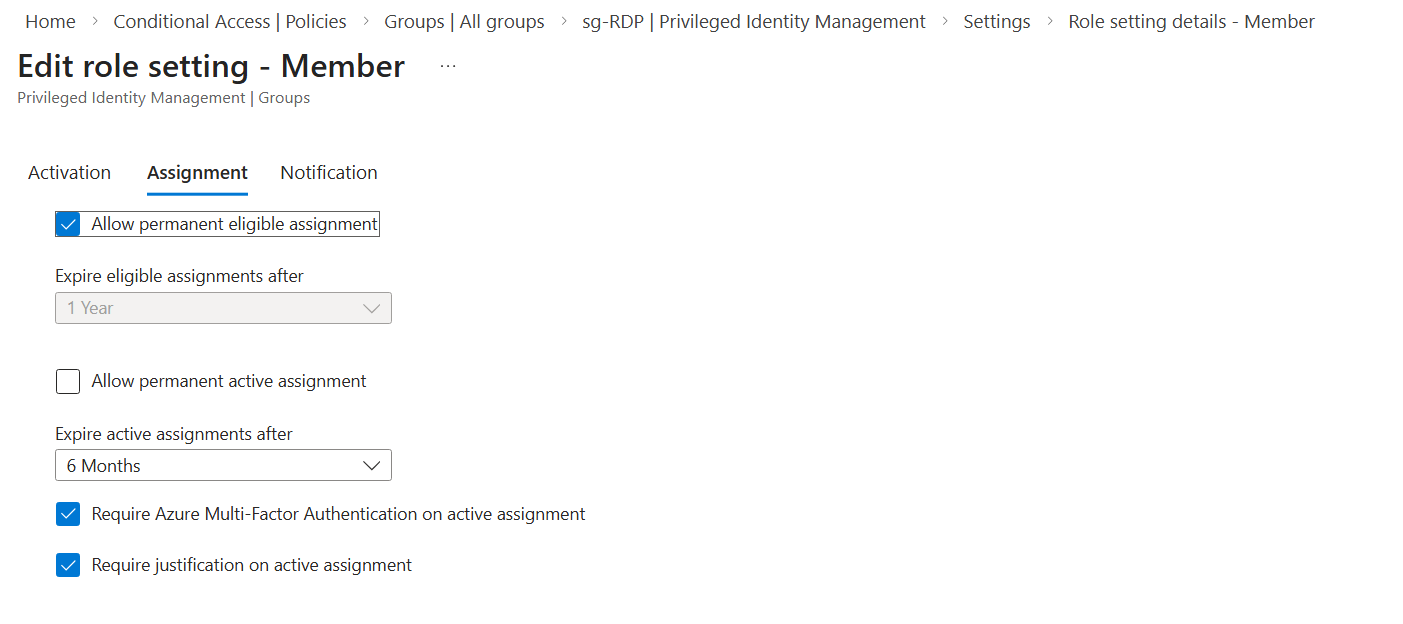
Now set the notification settings as you prefer
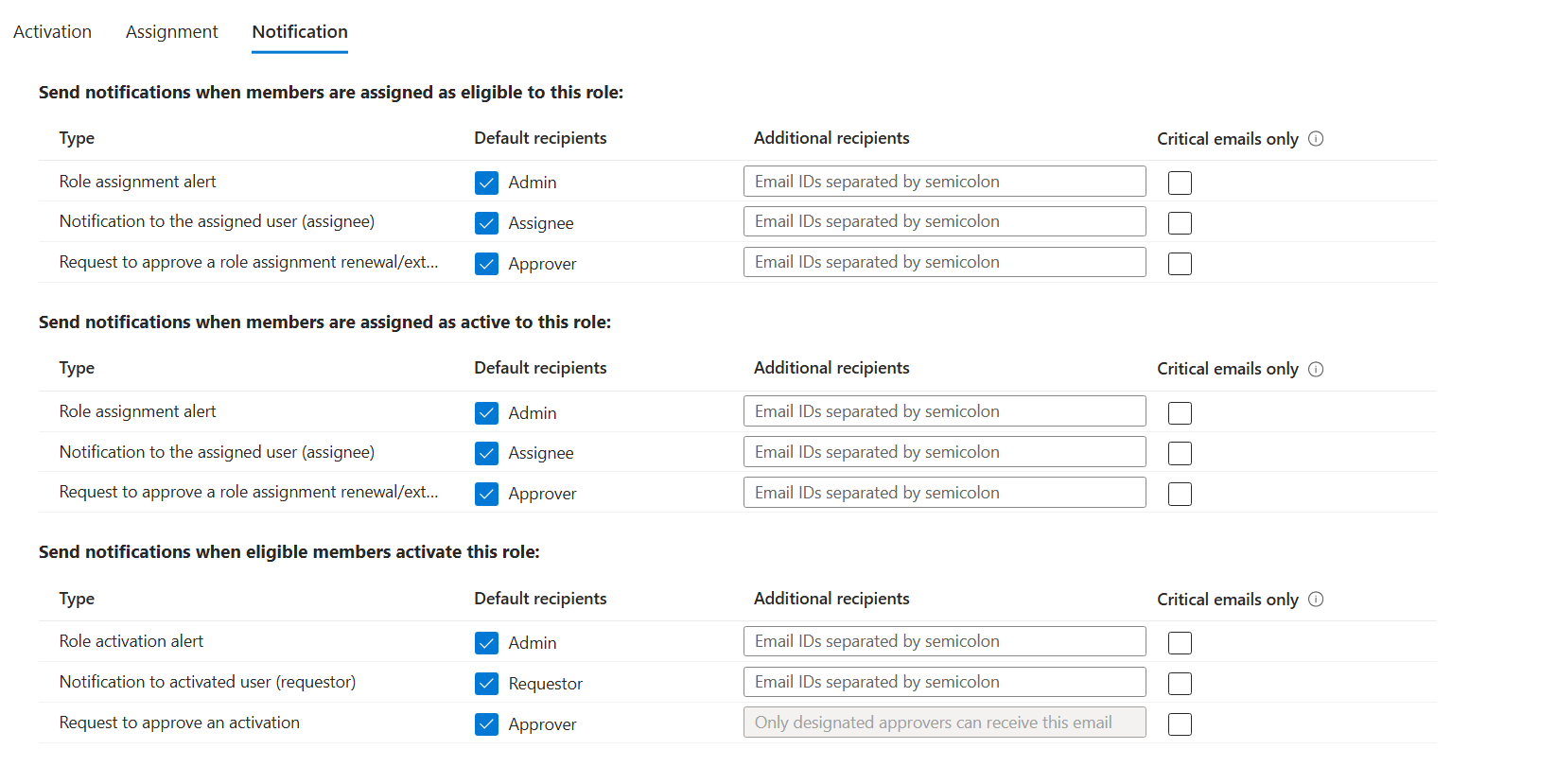
3. Add the assignments
Now after you have configured and saved the settings you can proceed and add the eligible members:
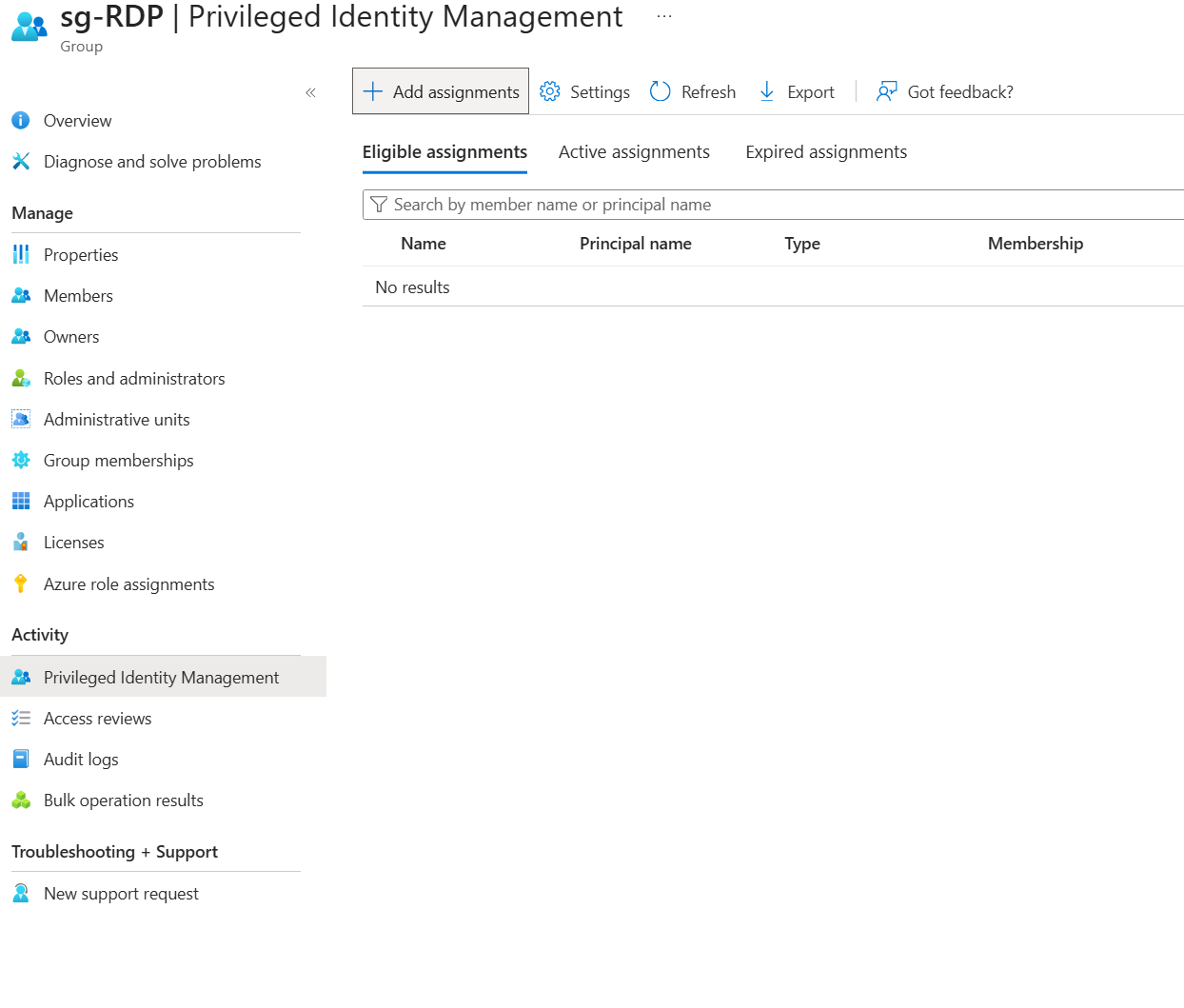
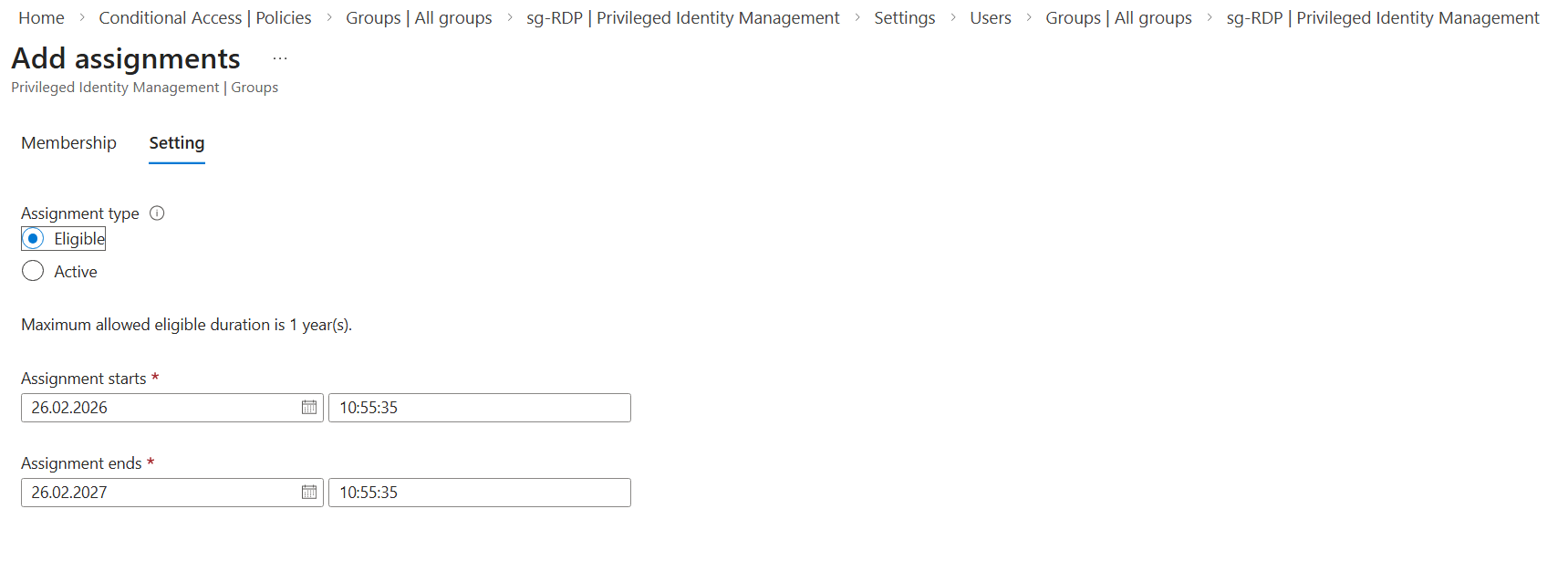
After that, the user is now able to use PIM and becoming a member of the group.
4. Activate the group membership
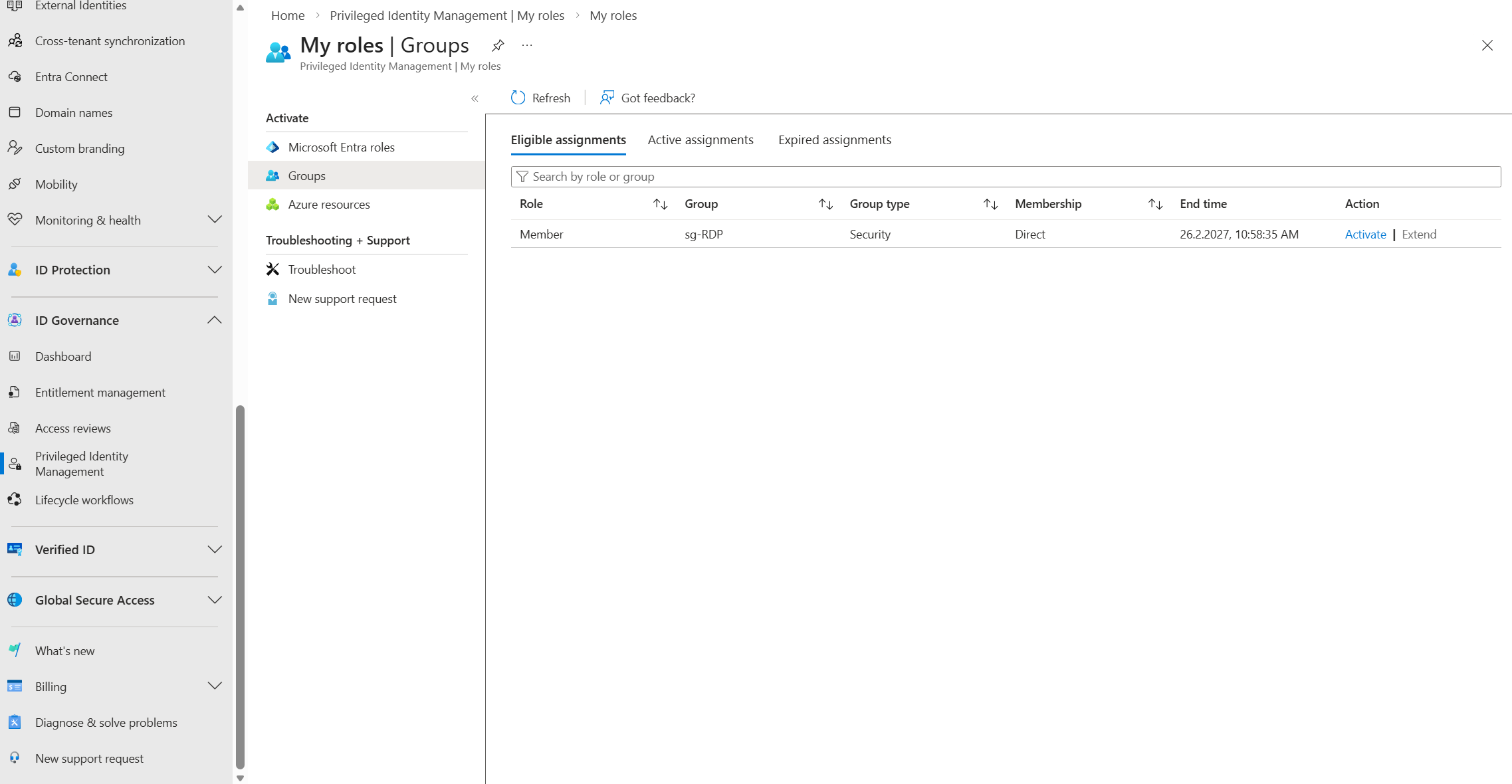
The user can now head into the Entra ID portal > ID Governance > My Roles > Groups and activate the role
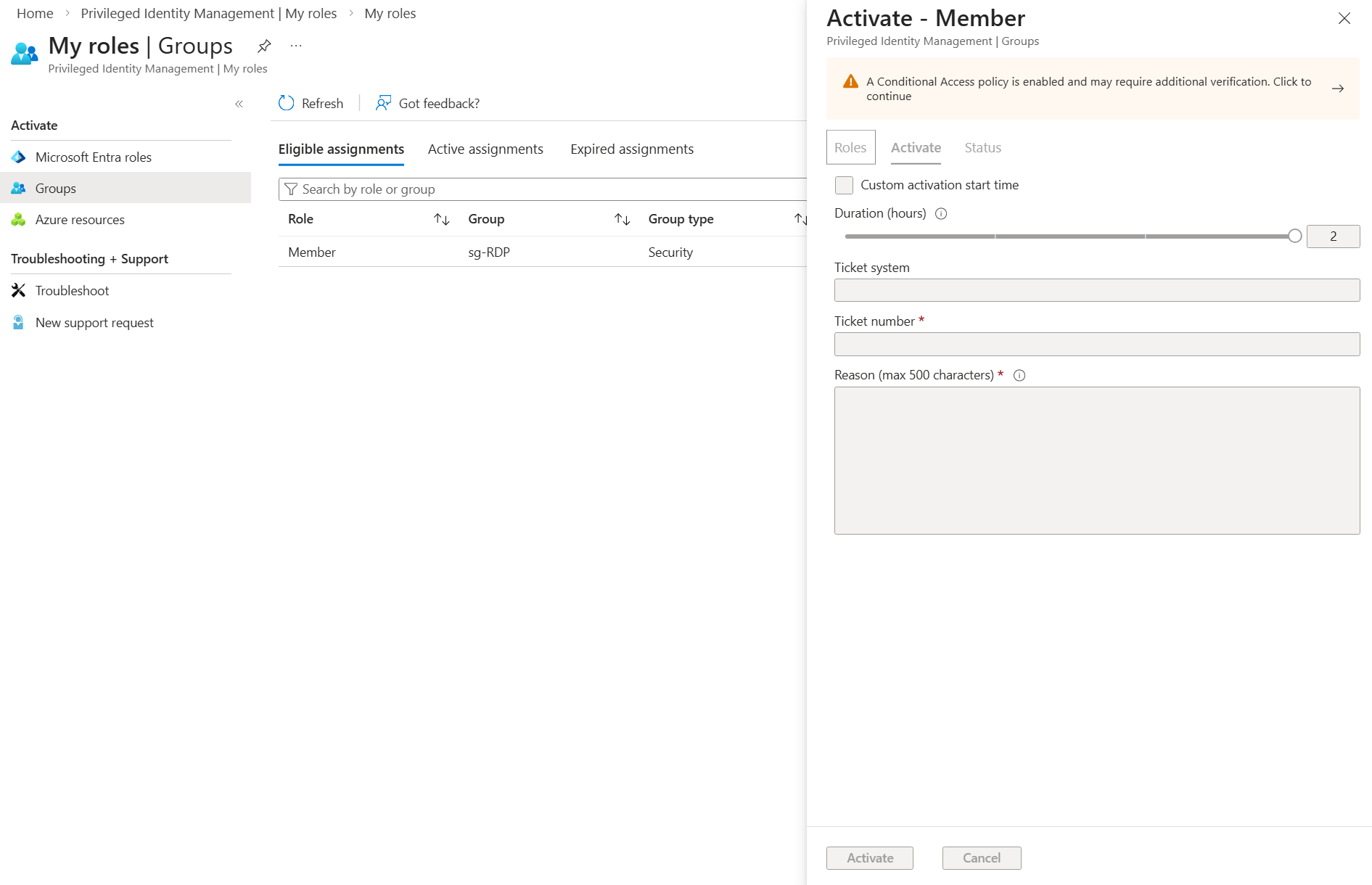
After we click on activate the authentication context gets active and prompts us to continue with an additional verification step, where we do need to complete Phishing-resistant MFA - we additionally must insert informations about the Ticket number and a Reason.
After completing MFA, the user is added to the group, and the backsync synchronizes them into the on-premises group. In our setup, we use Entra Domain Services, with Entra ID as the source of truth, which syncs all Entra ID objects into Active Directory.
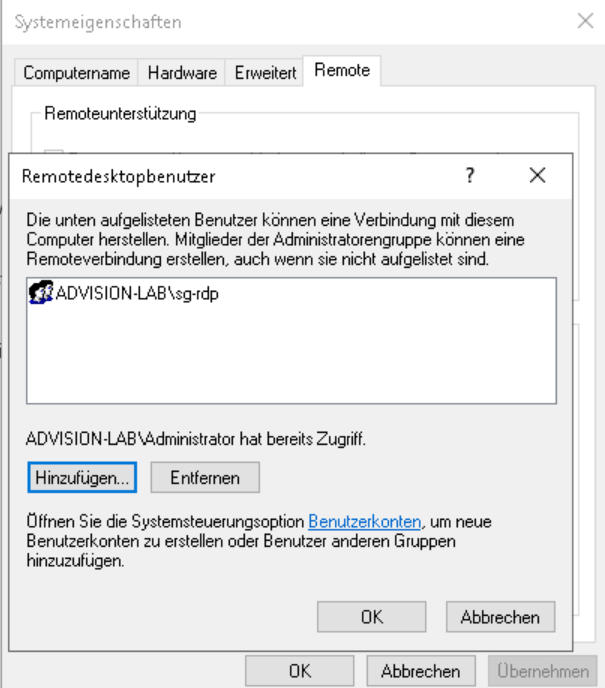
The only thing we must ensure is, that the selected group has now the needed RDP access for example.
Common Implementation Mistakes
We often see the feature mostly left unused or misconfigured for high-impact groups:
- ❌ Using PIM for roles, but not for groups
- ❌ Leaving role-assignable groups permanently assigned
- ❌ No approval workflow for high-impact groups
- ❌ No monitoring of activation patterns
In my opinion, PIM for Groups should be an integral part of your overall Privileged Access Strategy.
Strategic Recommendation
- Identifying high-impact groups
- Converting permanent members to eligible
- Implementing approval + justification
- Enabling logging and alerting
- Conducting quarterly access reviews
Begin by identifying high-impact groups by determining which accounts and permission groups carry particularly high risk or extensive access rights through groups. Permanent members of these groups should then be transitioned into eligible, but not continuously active, roles so that privileged access is granted only when genuinely needed. Where possible use PIM (Role-based).
Building on this, implement a clear approval and justification process to ensure that every activation is traceable and controlled. Complement this with comprehensive logging and alerting to detect suspicious activity at an early stage within your SIEM. Finally, conduct quarterly access reviews to regularly validate permissions and promptly remove any rights that are no longer required. This approach significantly reduces the attack surface while keeping additional operational effort to a minimum.
Final Thoughts
Zero Trust isn’t just about authentication. It’s about eliminating standing privilege everywhere including group membership. PIM for Groups and PIM itself is one of the most overlooked yet powerful controls inside Microsoft Entra ID.
If you’re already using PIM for roles, this should be your logical next step. 😉
⚠️ Disclaimer
The configurations shared in this post reflect my personal approach to solving this specific challenge. Every environment is unique, so adapt these solutions to fit your needs.
Happy configuring! 😊


