
Microsoft Defender for Office 365 (MDO) is a cloud-native security solution designed to protect organizations against advanced threats delivered through email, collaboration tools, and Office applications. Formerly known as Office 365 Advanced Threat Protection (ATP), MDO focuses on preventing, detecting, and responding to malicious content such as phishing, malware, and zero-day attacks before they reach users.
By combining machine learning, behavioral analysis, and threat intelligence from Microsoft’s global security ecosystem, Defender for Office 365 provides layered protection across services like Exchange Online, Microsoft Teams, etc.
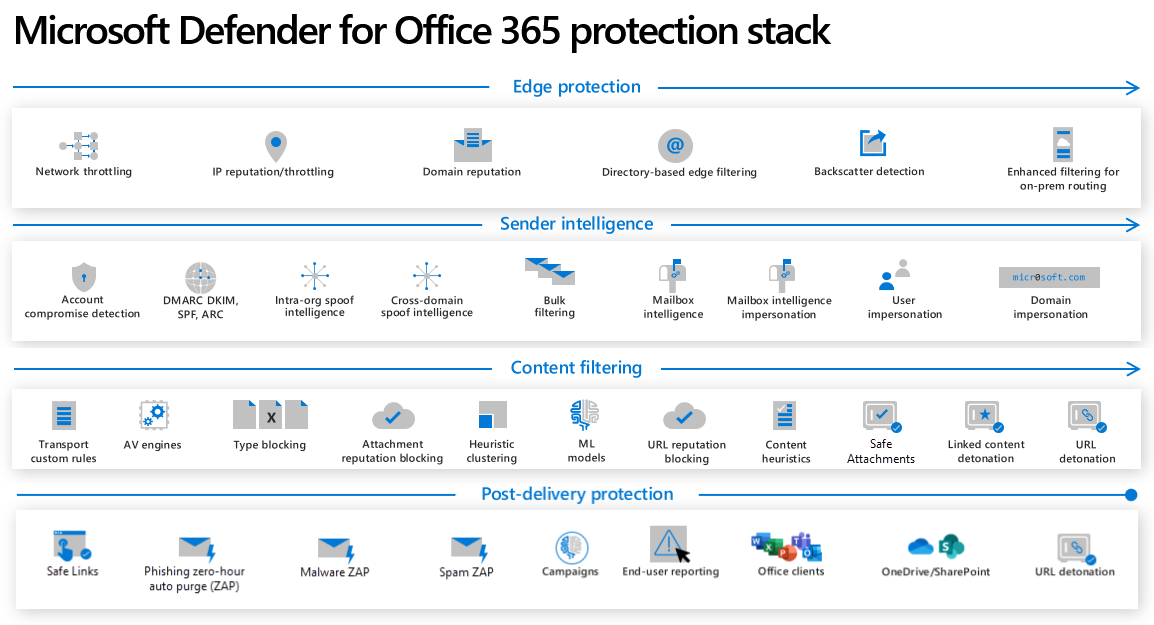
In this blog, we’ll begin by explaining why Defender for Office 365 (MDO) is essential, including an overview of the attack surface and the most common types of threats. We’ll then dive into the architecture of MDO, followed by a concise summary of key protection settings. Finally, looking into detailed configuration guidance, combining Microsoft best practices with insights drawn from real-world experience.
- Why Defender for Office matters (aka the theoretical blah blah you can skip if you don't care😉… but make sure you know what you’re protecting and how you’re protecting it.)
- Licensing
- Policies
- Anti-Phishing
- Anti-Spam
- Anti-Malware
- Safe Attachements
- Safe Links
- Rules
- Tenant Allow/Block List
- Advanced delivery
- Enhanced filtering
- Quarantine policies
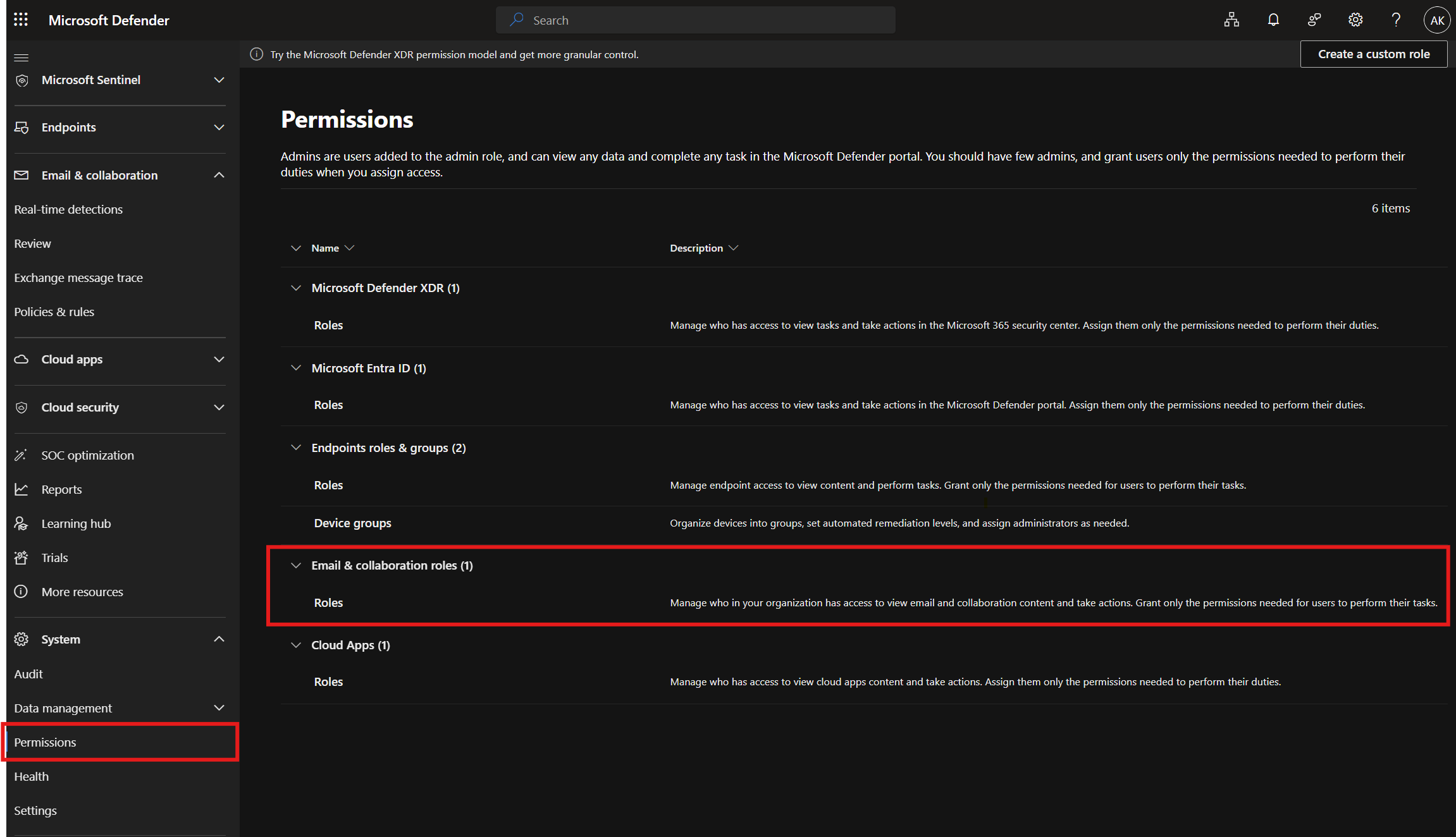
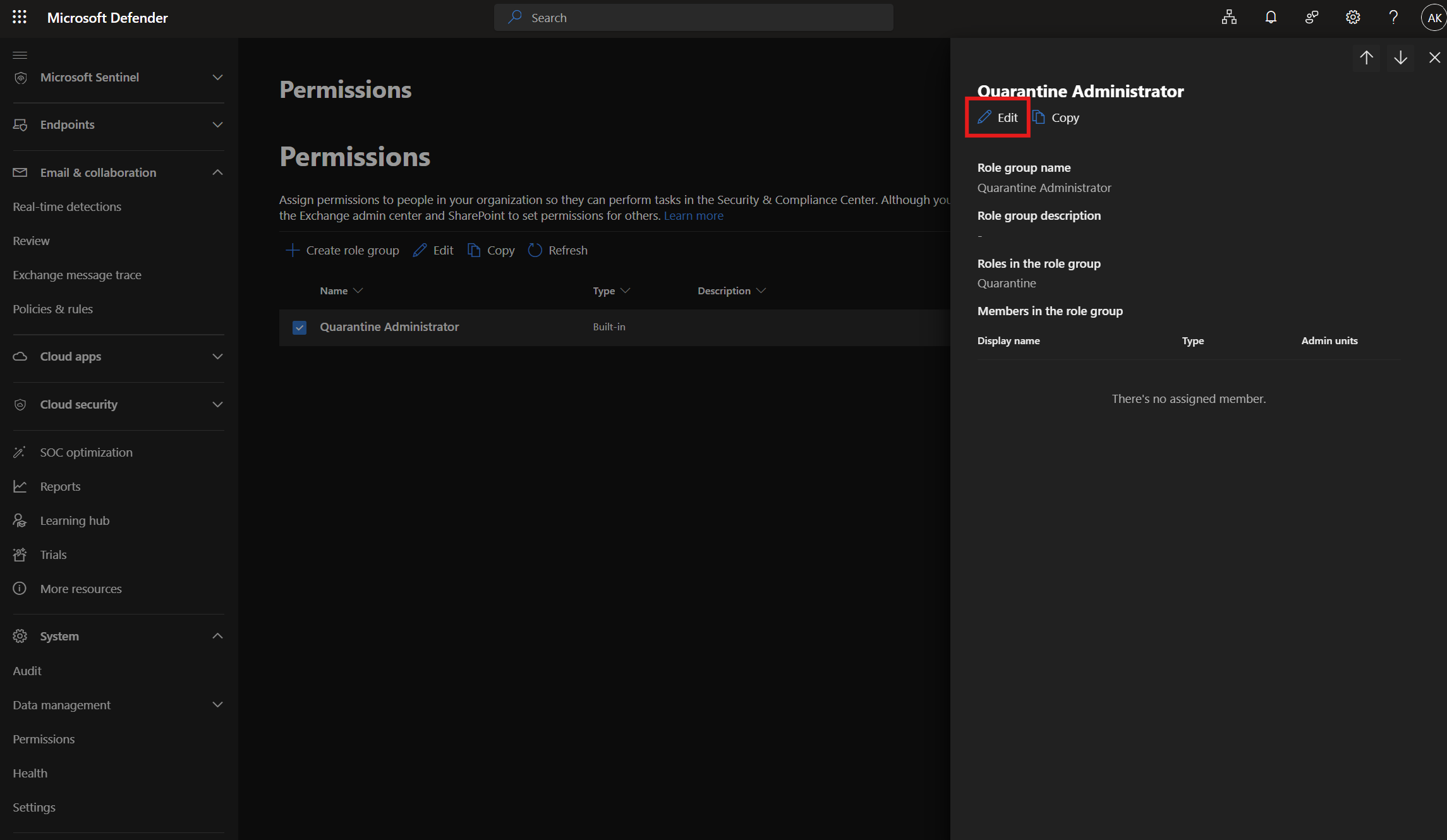
- RBAC for Quarantine Administrator
- Final Thoughts
Why Defender for Office 365 Matters
Email and Office workloads are deeply embedded in daily business operations. Every user interacts with Outlook, documents, links, and attachments often dozens or hundreds of times per day. This makes Business-Email-Compromise (BEC) and Office services in general one of the most attractive and effective entry points for attackers.
Defender for Office 365 addresses this challenge by detecting threats early in the attack lifecycle, ideally before a single click or credential submission can occur. To understand its importance, we first need to look at the underlying attack surface.
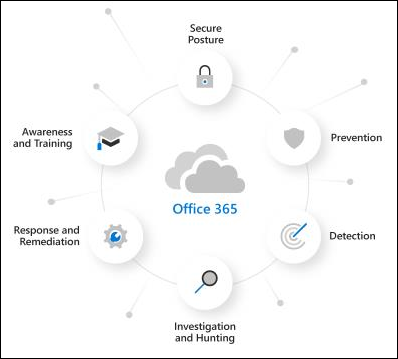
The Attack Surface
In cybersecurity, the largest and most exploited attack surface consists of:
- Internet-facing services
- Office and collaboration applications
Because nearly every employee uses email and Office tools daily, this surface is broad, diverse, and highly profitable for attackers. Phishing campaigns, malicious attachments, and weaponized links scale easily and require minimal effort compared to exploiting hardened infrastructure.
Organizations attempt to counter this with multiple security layers, gateways, and policies but these controls must continuously evolve to keep pace with modern attack techniques. Defender for Office 365 is designed to be one of these critical layers.
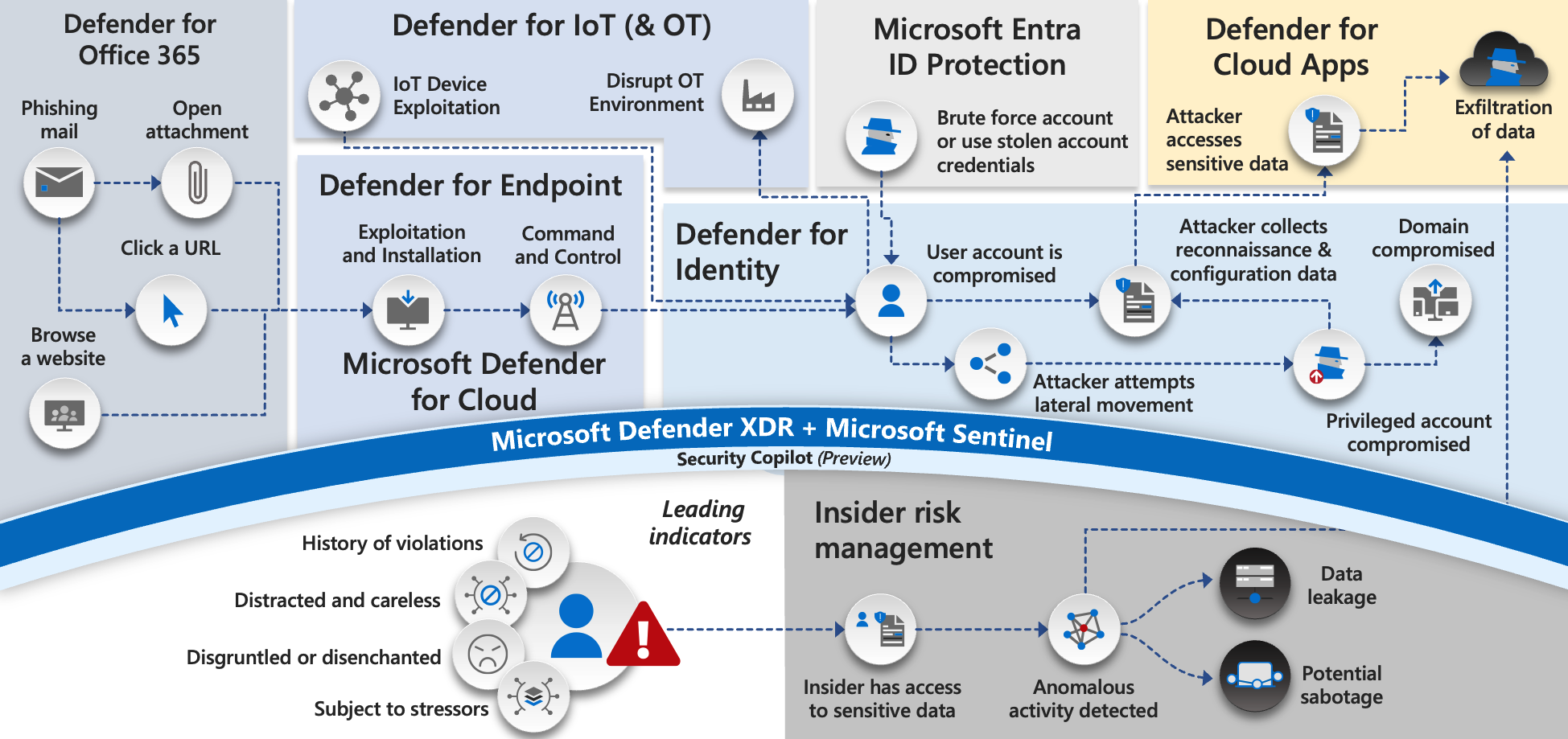
Defender for Office 365 aims to interrupt attacks at the earliest possible stage, before lateral movement, privilege escalation, or data exfiltration can occur. It does so using a combination of real-time analysis, detonation environments, and post-delivery remediation.
Common Attack Patterns
The following attack techniques are among the most frequently observed and are directly addressed by Defender for Office 365:
- Malicious Attachments
Emails include executable files, macros, or scripts that perform malicious actions once opened. - Links to Malware Repositories
URLs redirect users to cloud storage platforms hosting malware files. - Drive-by URLs
Simply opening a link triggers the execution of malicious code via a compromised website. - Malicious Links Embedded in Attachments
The harmful URL is hidden inside a document or archive rather than the email body. - Credential Harvesting
Messages contain links leading to fake login pages designed to steal user credentials.
These patterns align closely with techniques documented in the MITRE ATT&CK framework, highlighting email as a critical vector in modern threat campaigns.
Threat Types and Email Categories
Defender for Office 365 classifies and mitigates a wide range of email-based threats, including:
- Spam Emails
Unwanted or junk messages with no direct malicious intent. - Bulk Emails
Large-scale, one-time campaigns sent to many or one recipient(s), often borderline malicious - also called as "Mailbombing" Incidents and their goals are:- Disruption / Denial of Service - Overwhelm an inbox or mail server so legitimate messages are missed or delayed.
- Harassment or Intimidation - Annoy, stress, or pressure an individual or organization (often part of online harassment).
- Silencing Communication - Prevent a person or group from communicating effectively by burying important emails.
- Retaliation or Protest - Used as a form of digital protest or revenge against a perceived wrongdoing.
- Distraction or Cover - Flooding an inbox to hide important alerts (e.g., account security warnings) among the noise.
- Testing or Demonstrating Weaknesses (Illicitly) - Malicious actors may use it to probe how resilient an organization’s email systems or defenses are.
- Malware Emails
Messages containing harmful URLs or attachments designed to compromise systems. - Phishing and Spoofing
Messages impersonating trusted senders or brands to steal information or redirect users to malicious websites.

Licensing
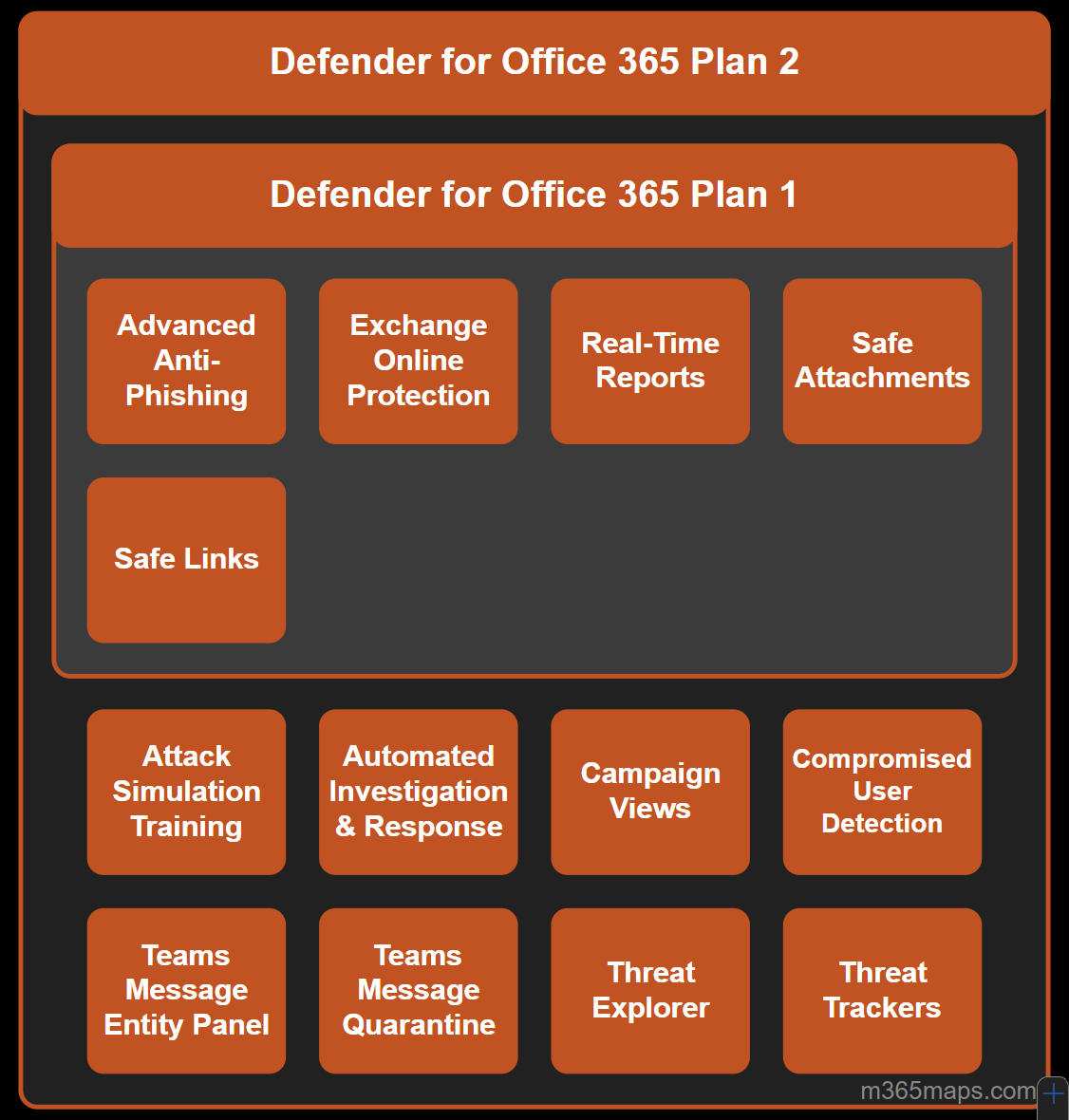
The main difference is the depth of protection and response capabilities.
Plan 2 includes everything in Plan 1, plus advanced detection, investigation, automation, and user training features.
🛡️ Defender for Office 365 Plan 1 (Core Protection)
Plan 1 focuses on preventing email-based threats.
Key features:
- Exchange Online Protection (EOP): Protection against spam, malware, and known threats
- Safe Attachments: Detonates email attachments in a sandbox to detect malware
- Safe Links: Real-time URL scanning in emails and Office documents
- Advanced Anti-Phishing: Protection against phishing, spoofing, and impersonation attacks
- Real-time reports
Suited for:
Organizations that need strong email security without advanced security operations.
🔍 Defender for Office 365 Plan 2 (Advanced Protection & Response)
Plan 2 builds on Plan 1 and adds investigation, automation, and security awareness capabilities.
Additional features in Plan 2:
- Threat Explorer: Deep visibility into attacks and affected users
- Automated Investigation & Response (AIR): Automatically investigates and remediates threats
- Attack Simulation Training: Phishing simulations and user awareness training
- Campaign Views: Identifies and analyzes coordinated attack campaigns
- Compromised User Detection: Detects potentially compromised accounts
- Threat Trackers: Tracks emerging and ongoing threat trends
- Microsoft Teams protection:
- Teams message quarantine
- Teams message entity panel
Suited for:
Organizations with higher security requirements, Security Analyst teams or regulatory/compliance needs.
Architecture
The diagram below shows a baseline architecture for Microsoft Defender for Office 365. This architecture can include integrations with a third-party SMTP gateway or an on-premises email environment. Be aware every mails go into EOP befor entering MDO.
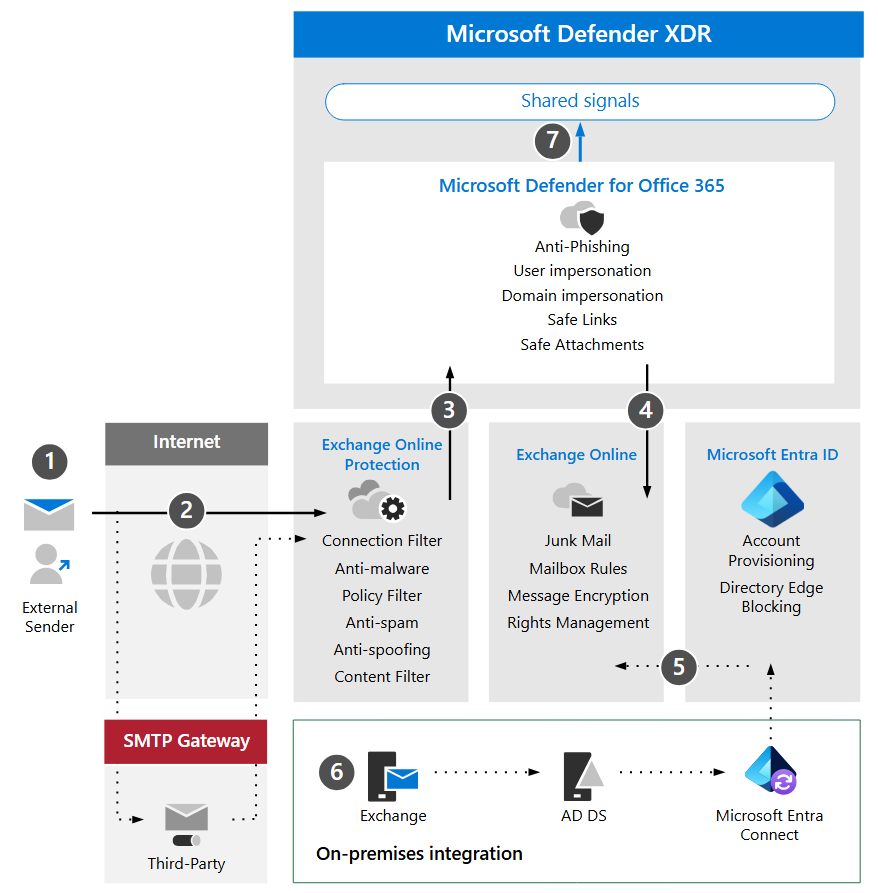
| Call-out | Description |
|---|---|
| 1 | The host server for the external sender typically performs a public DNS lookup for an MX record, which identifies the target server to relay the message. This can point directly to Exchange Online (EXO) or to an SMTP gateway configured to relay to EXO. |
| 2 | Exchange Online Protection negotiates and validates the inbound connection, then inspects the message headers and content to determine what additional policies, tagging, or processing are required. |
| 3 | Exchange Online integrates with Microsoft Defender for Office 365 to provide advanced threat protection, mitigation, and remediation. |
| 4 | Messages that aren’t malicious, blocked, or quarantined are processed and delivered to the recipient in EXO, where user preferences—such as junk mail settings, mailbox rules, or other configurations—are evaluated and applied. |
| 5 | Integration with on-premises Active Directory can be enabled using Microsoft Entra Connect, allowing mail-enabled objects and accounts to be synchronized and provisioned to Microsoft Entra ID and Exchange Online. |
| 6 | When integrating an on-premises environment, it’s recommended to use an Exchange server for supported management and administration of mail-related attributes, settings, and configurations. |
| 7 | Microsoft Defender for Office 365 shares signals with Microsoft Defender XDR to enable extended detection and response (XDR) capabilities. |
Hybrid coexistence scenarios where production mailboxes are split between on-premises infrastructure and Microsoft 365 require more advanced and customized configurations.
Prerequisites
A successful Defender for Office 365 evaluation or production pilot requires the following prerequisites:
- All your recipient mailboxes are currently in Exchange Online.
- Your public MX record resolves directly to EOP or a third-party Simple Mail Transfer Protocol (SMTP) gateway that then relays inbound external email directly to EOP.
- Your primary email domain is configured as authoritative in Exchange Online.
- You successfully deployed and configured Directory-Based Edge Blocking (DBEB) as appropriate.
Policies
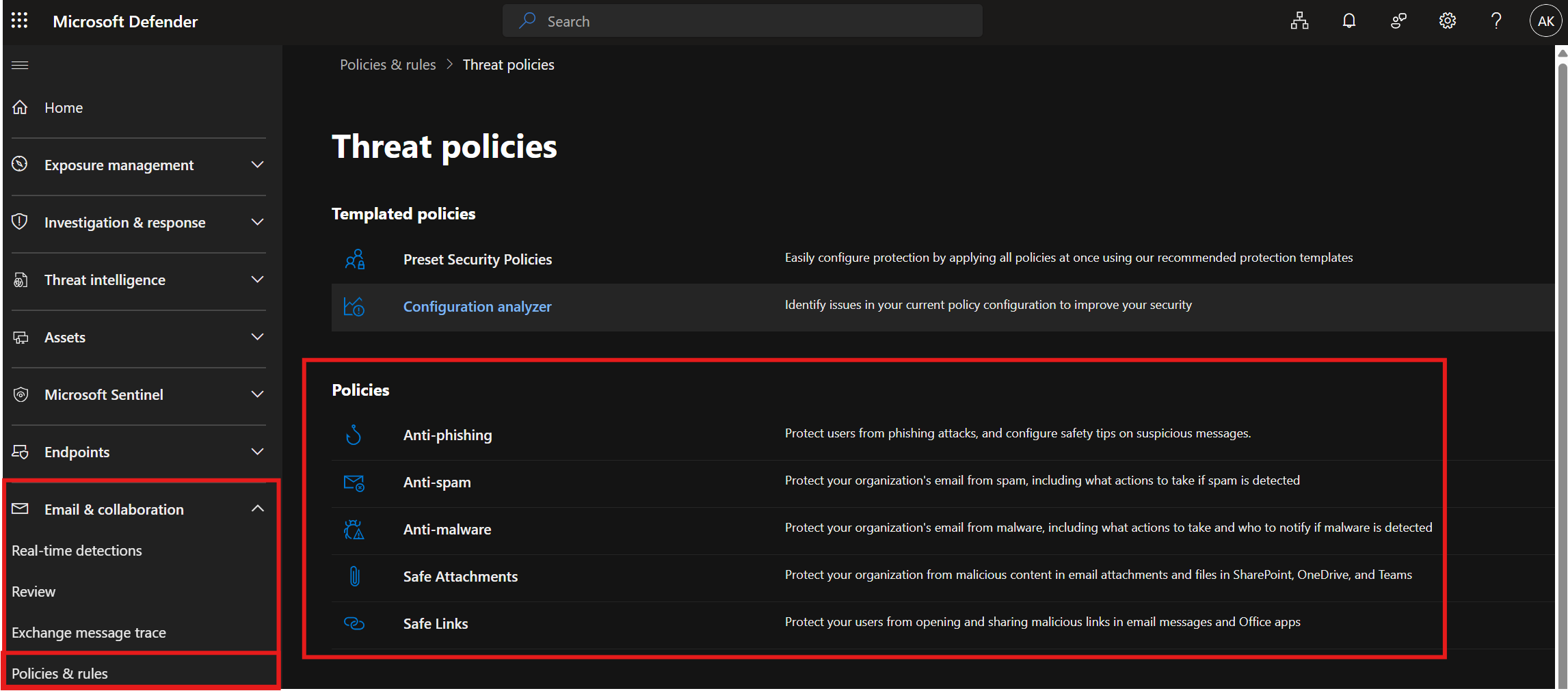
Here we go with the interesting part - the policies. All the policies are configured in the Defender Portal security.microsoft.com > Email & collaboration > Policies & rules > Threat policies
Anti-Phishing
Anti-Spam filters analyze incoming email to distinguish spam from legitimate messages. They continuously learn from known spam and phishing threats, as well as feedback from Outlook.com (consumer) users. Ongoing input from administrators and users helps keep the filtering system up to date and effective.
Configuration
| Category | Setting | Recommended Value |
|---|---|---|
| Phishing threshold & protection | Phishing email threshold | 3 – More aggressive |
| Enable users to protect | Disabled (can be added later during SecOps) | |
| Enable domains to protect | Enabled | |
| Included domains I own | Enabled | |
| Include custom domains | Enabled | |
| Add trusted senders and domains | Not configured (can be added later during SecOps) | |
| Enable mailbox intelligence (Recommended) | Enabled | |
| Enable intelligence for impersonation protection (Recommended) | Enabled | |
| Enable spoof intelligence (Recommended) | Enabled | |
| Actions – User / Domain Impersonation & Spoofing | If a message is detected as user impersonation | Quarantine the message (Policy: DefaultFullAccessWithNotificationPolicy) |
| If a message is detected as domain impersonation | Quarantine the message (Policy: AdminOnlyAccessPolicy) | |
| If Mailbox Intelligence detects an impersonated user | Quarantine the message (Policy: DefaultFullAccessWithNotificationPolicy) | |
| Honor DMARC record policy when detected as spoof | Enabled | |
| If message detected as spoof and DMARC policy is p=quarantine | Quarantine the message | |
| If message detected as spoof and DMARC policy is p=reject | Reject the message | |
| If message detected as spoof by spoof intelligence | Quarantine the message (Policy: DefaultFullAccessWithNotificationPolicy) | |
| Safety tips & indicators | Show first contact safety tip (Recommended) | Enabled |
| Show user impersonation safety tip | Enabled | |
| Show domain impersonation safety tip | Enabled | |
| Show user impersonation unusual characters safety tip | Enabled | |
| Show Question Mark for unauthenticated senders for spoof | Enabled | |
| Show “via” tag | Enabled |
Anti-Spam
In organizations that use cloud-based mailboxes, email security isn’t something you have to build from scratch—it’s already there you just need to configure it properly.
What makes this protection especially effective is how it learns. Microsoft’s spam filtering continuously improves by analyzing known spam and phishing attacks, as well as real user feedback from platforms like Outlook.com. On top of that, feedback from Microsoft 365 admins and users helps fine-tune the filters over time, ensuring they stay accurate and up to date.
MDO - Spam filtering verdicts
- Spam: The message received a spam-confidence level (SCL) of 5 or 6.
- High confidence spam: The message received an SCL of 7, 8, or 9.
- Phishing
- High confidence phishing: As part of secure by default, high confidence phishing messages are always quarantined. Users can't release their own quarantined high confidence phishing messages, regardless of any available settings configured by admins.
- Bulk: The message source met or exceeded the configured bulk complaint level (BCL) threshold.
For more information about anti-spam protection, see Frequently asked questions: Anti-spam protection for cloud mailboxes
Configuration
| Category | Setting | Recommended Value |
|---|---|---|
| Bulk email threshold & spam properties | Bulk email threshold | 6 |
| Image links to remote websites | Off | |
| Numeric IP address in URL | On | |
| URL redirect to other port | On | |
| Links to .biz or .info websites | On | |
| Spam properties - Mark as spam | Empty messages | On |
| Embedded tags in HTML | On | |
| JavaScript or VBScript in HTML | On | |
| Form tags in HTML | On | |
| Frame or iframe tags in HTML | On | |
| Web bugs in HTML | On | |
| Object tags in HTML | On | |
| Sensitive words | On | |
| SPF record: hard fail | On | |
| Sender ID filtering hard fail | On | |
| Backscatter | Off | |
| Contains specific languages | Off (can be added later during SecOps) | |
| From these countries | Off (can be added later during SecOps) | |
| Test mode | Test mode | None |
| Actions - Spam | Spam | Move message to Junk Email folder |
| High confidence spam | Quarantine message (Policy: DefaultFullAccessPolicy) | |
| Actions - Phishing | Phishing | Quarantine message (Policy: DefaultFullAccessWithNotificationPolicy) |
| High confidence phishing | Quarantine message (Policy: AdminOnlyAccessPolicy) | |
| Other settings | Bulk complaint level (BCL) met or exceeded | Move message to Junk Email folder |
| Intra-organizational messages to take action on | All phishing and high-confidence spam messages | |
| Retain spam in quarantine for this many days | 30 | |
| Enable spam safety tips | Enabled | |
| Enable zero-hour auto purge (ZAP) | Enabled | |
| Enable for phishing messages | Enabled | |
| Enable for spam messages | Enabled | |
| Allow-& Block List | Should be set via tenant/allow block list | Can be added later if needed |
Anti-Malware
Anti-malware protection for email in Microsoft 365 is multi-layered and designed to catch all known malware that travels into or out of your organization.
It quarantines messages when malware is found in any attachment. Whether the recipients can view or otherwise interact with the quarantined messages is controlled by quarantine policies. By default, messages that were quarantined due to malware can only be viewed and released by admins. Users can't release their own quarantined malware messages, regardless of any available settings that admins configure.
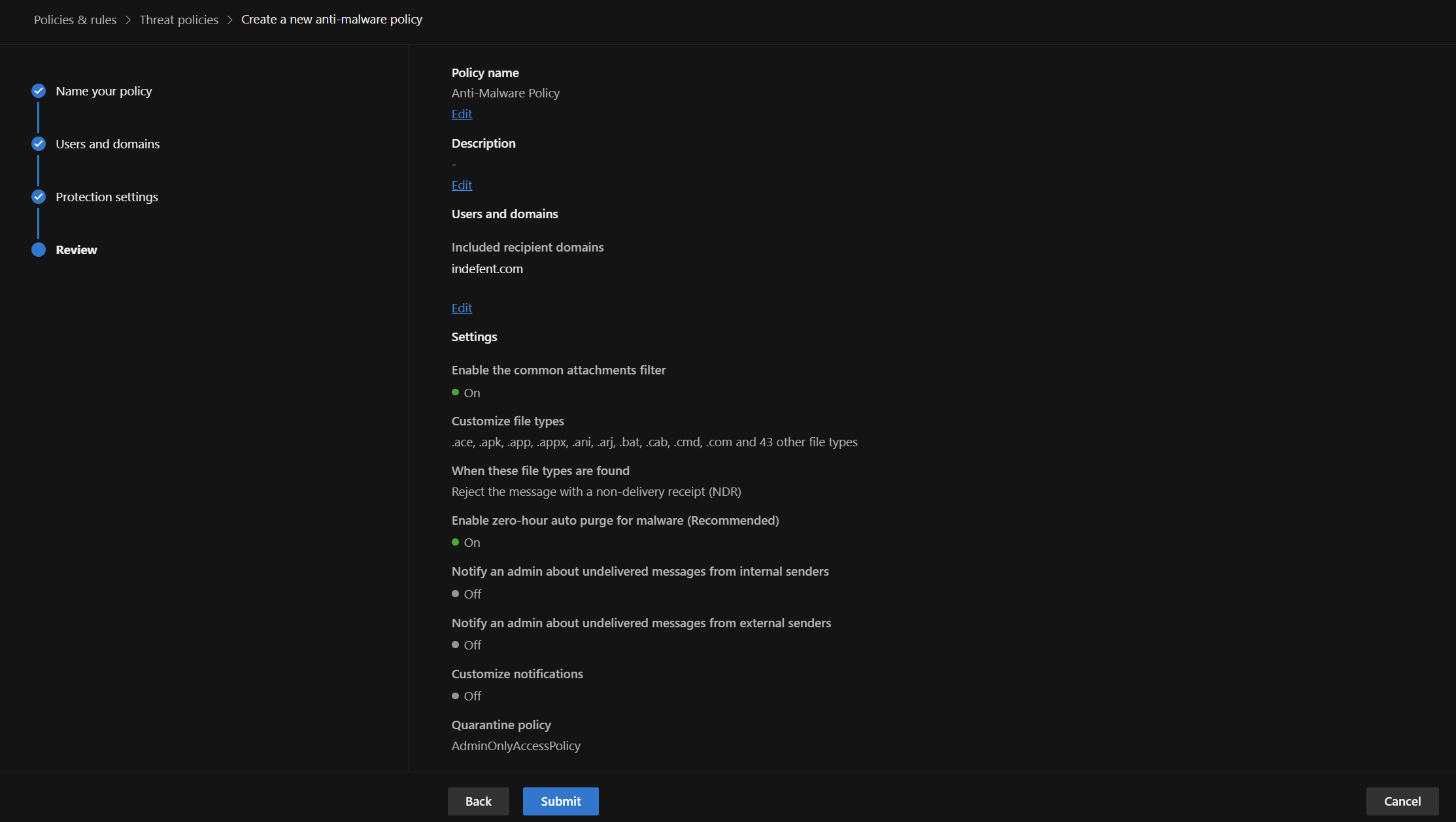
Configuration
| Setting | Recommended Value |
|---|---|
| Enable the common attachments filter | Enabled |
| Leave default file types. Extend if needed. | When these file types are found: Reject the message with a non-delivery receipt (NDR) |
| Enable zero-hour auto purge for malware (Recommended) | Enabled |
| Quarantine policy | AdminOnlyAccess |
| Notification | Not configured |
Safe Attachments
Email attachments and other file types can include invoices, reports, documentation, and many different formats such as PDF files, Word documents, Excel spreadsheets, and more.
Attackers often exploit this delivery method by sending fake invoices or compressed files that contain executable content. In addition, embedded macros or scripts within documents can be used to run malicious code on a user’s system without their knowledge.
One effective way to mitigate this risk is the Safe Attachments feature in Microsoft Defender for Office 365.
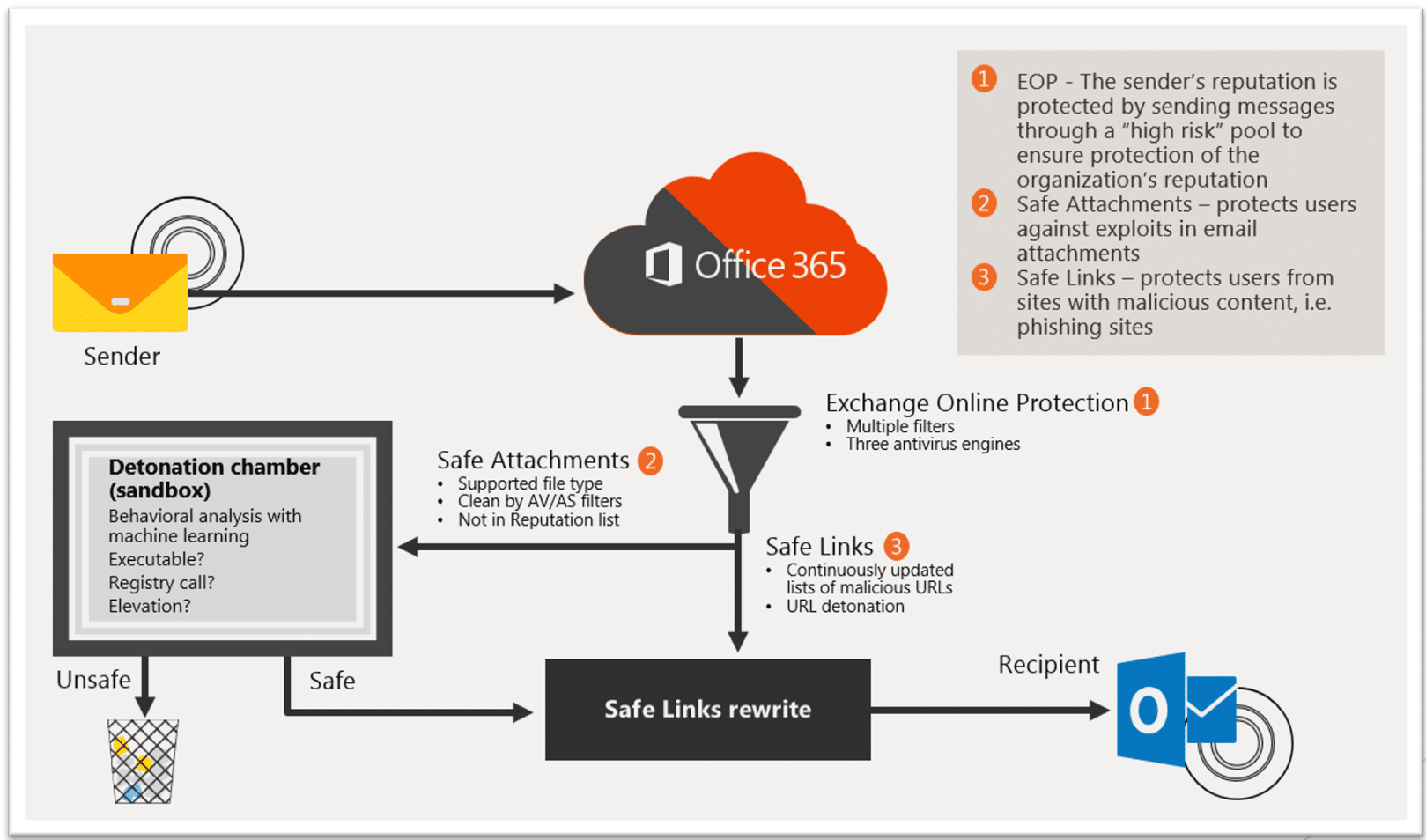
Defender for Office 365 Safe Attachments works by opening and inspecting attachments in a secure, isolated virtual environment known as a sandbox. This process determines whether a file is harmful. If no malicious behavior is detected, the attachment is then safely delivered to the user’s mailbox.
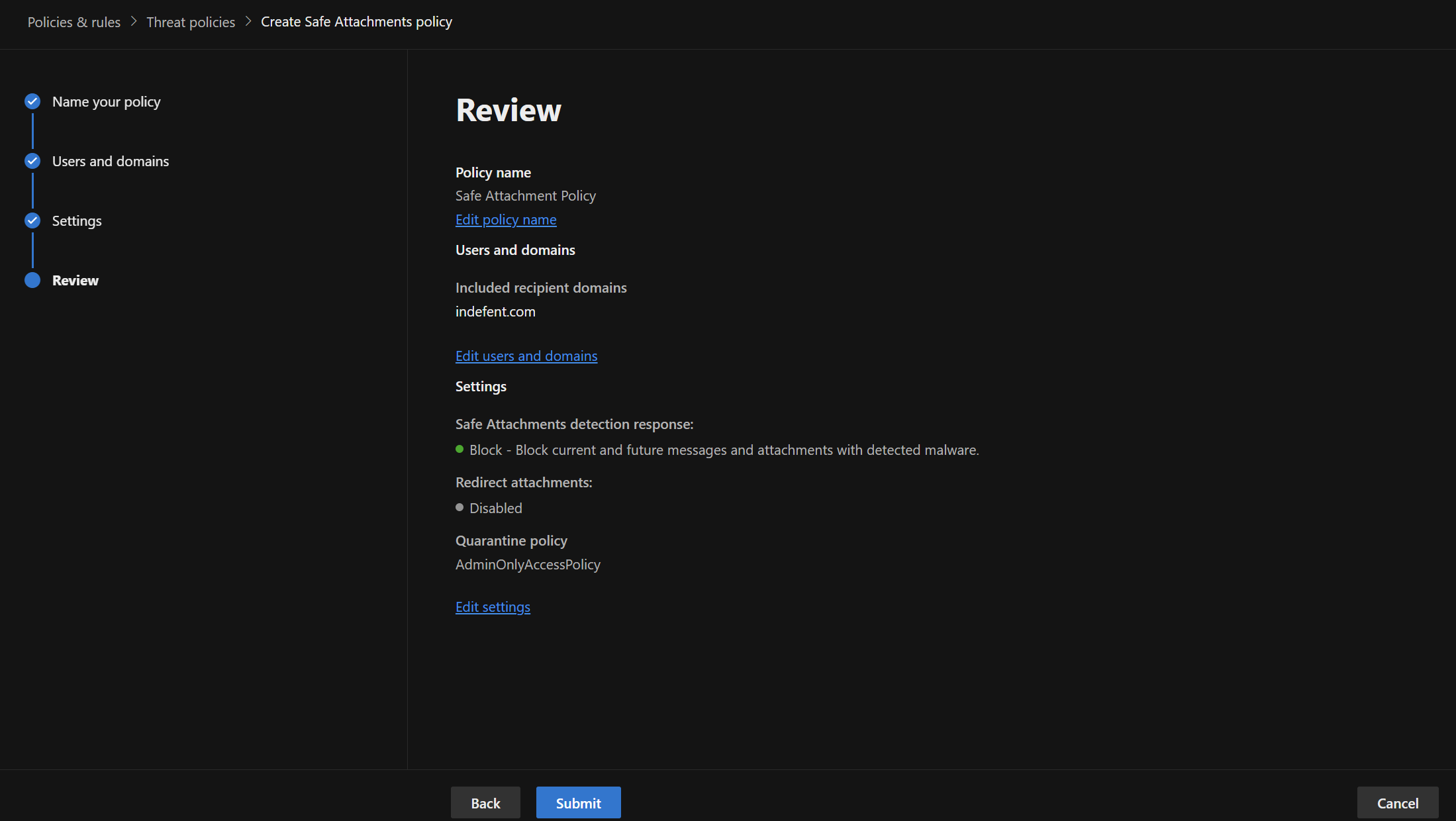
Configuration
| Setting | Recommended Value |
|---|---|
| Select the action for unknown malware in attachments | Block |
| Quarantine policy | AdminOnlyAccess |
| Enable redirect only supports the Monitor action | Not configured |
Safe Links
Safe Links checks URLs in emails, messages, and Office documents in real time when a user clicks on them. If a link is considered malicious, access to the target site is blocked to protect the user.
Without this protection, users could unintentionally open harmful links and compromise not only their own device but the entire IT infrastructure.
Traditionally, organizations use Secure Web Gateways like Netskope or proxy servers to inspect and block malicious web traffic. However, this approach requires all traffic to pass through the gateway, which creates challenges for remote work, VPN usage, and bandwidth availability or SASE like CATO or in Microsoft Language Global Secure Access which delivers those capabilities for the whole endpoint (not only within Microsoft 365).
Defender for Office 365 Safe Links overcomes these limitations by protecting users directly within Microsoft 365. All incoming links are analyzed and rewritten, preventing users from accessing or sharing malicious URLs from any source.
Configuration
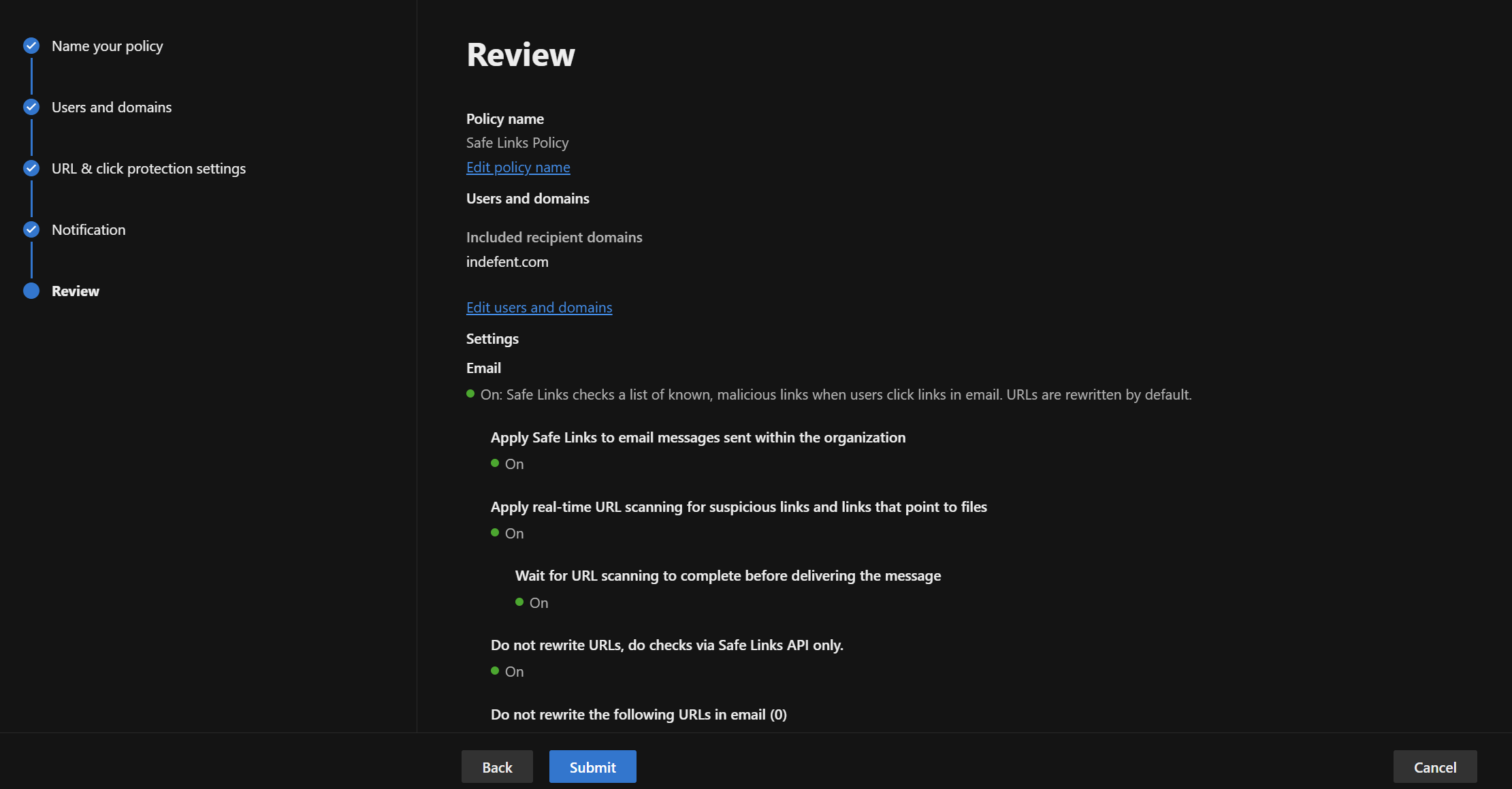
| Setting | Recommended Value |
|---|---|
| On – Safe Links checks known malicious links when users click links in email. URLs are rewritten by default. | |
| Enable Safe Links for email | Enabled |
| Apply Safe Links to email messages sent within the organization | Enabled |
| Apply real-time URL scanning for suspicious links and links that point to files | Enabled |
| Wait for URL scanning to complete before delivering the message | Enabled |
| Do not rewrite URLs, do checks via Safe Links API only | Enabled |
| Microsoft Teams | On – Safe Links checks known malicious links when users click links. URLs are not rewritten. |
| Office 365 Apps | On – Safe Links checks known malicious links when users click links. URLs are not rewritten. |
| Click protection settings | |
| Track user clicks | Enabled |
| Let users click through the original URL | Enabled |
| Display organization branding on notification and warning pages | Enabled |
| Notifications | |
| User notification method | Use custom notification text |
| Custom notification text | The link you are trying to open is currently being checked for security reasons. Please wait a moment. You will be redirected automatically. |
Rules
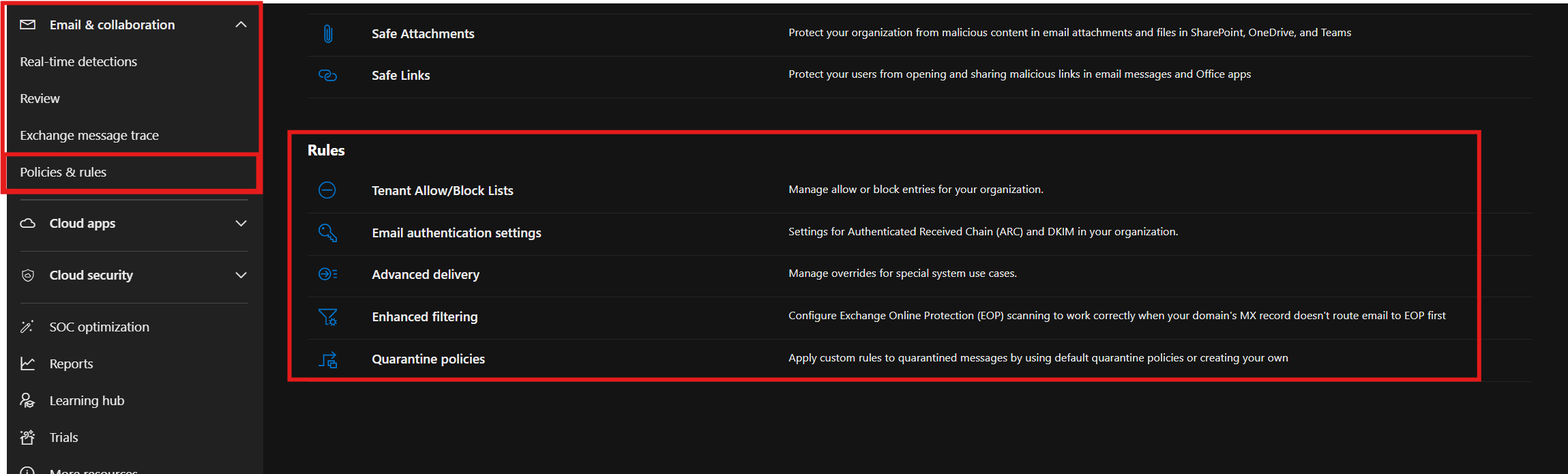
The "Rules" section includes controlling allowed and blocked senders through Tenant Allow/Block Lists, configuring authentication protocols like ARC and DKIM, and customizing special delivery options with Advanced Delivery for example for 3rd Party User Awareness Trainings like Knowbe4.
Enhanced Filtering ensures spam and malware protection works effectively, even with unique MX record setups. Quarantine Policies let you define how quarantined messages are handled, who can access them, and how notifications are managed.
TL;DR
- Tenant Allow/Block Lists → Manage allow or block entries for your organization.
- Email authentication settings → Settings for Authenticated Received Chain (ARC) and DKIM in your organization.
- Advanced delivery → Manage overrides for special system use cases.
- Enhanced filtering → Configure Exchange Online Protection (EOP) scanning to work correctly when your domain’s MX record doesn’t route email to EOP first.
- Quarantine policies → Configuring quarantine policies to control who can access and release messages
Tenant Allow/Block Lists
Tenant Allow/Block Lists are a key tool that allows organizations to explicitly allow or block specific items across the entire tenant. Management is organized into several categories:
- Domains & Addresses: Individual email addresses or entire domains can be allowed or blocked.
- Spoofed Senders: Handling of sender addresses that impersonate others (spoofing).
- URLs: Management of suspicious or trusted links in emails.
- Files: Blocking attachments based on their file hash values.
- IP Addresses: Allowing or blocking specific IP addresses for incoming email traffic.
Tenant Allow/Block Lists operate independently of transport rules, providing direct and explicit control even when other protection mechanisms are already in place.
Additionally, entries can include an expiration date and a description, making management and auditing easier and more transparent.
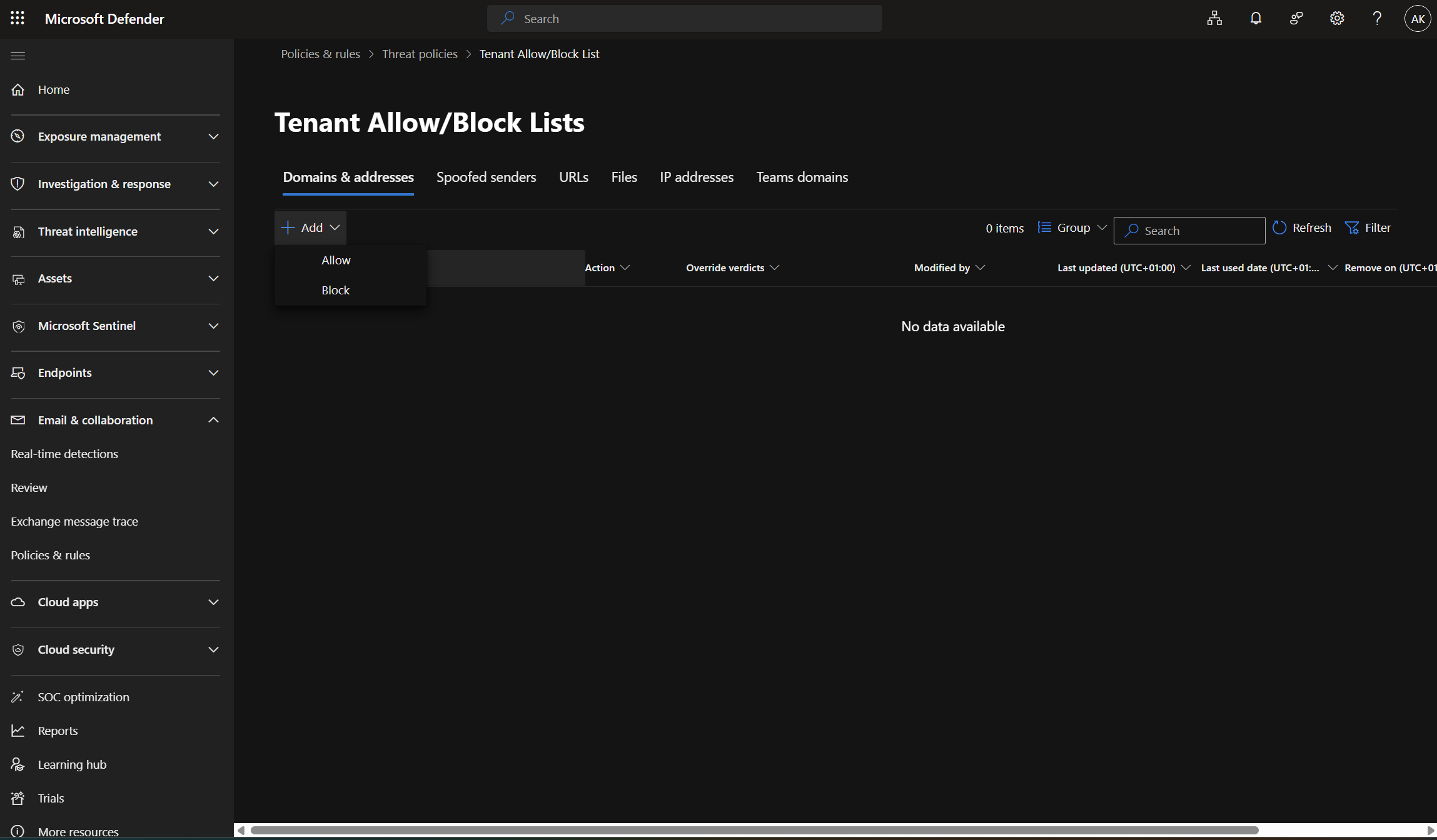
Please note that there are several ways to allow or block domains. The following method is the recommended approach (In order from most recommended to least recommended)
- Block entries for domains and email addresses (including spoofed senders) in the Tenant Allow/Block List.
- Outlook Blocked Senders (the Blocked Senders list that's stored in each mailbox).
- Blocked sender lists or blocked domain lists (anti-spam policies).
- Mail flow rules (also known as transport rules).
- The IP Block List (connection filtering).
Email authentication settings
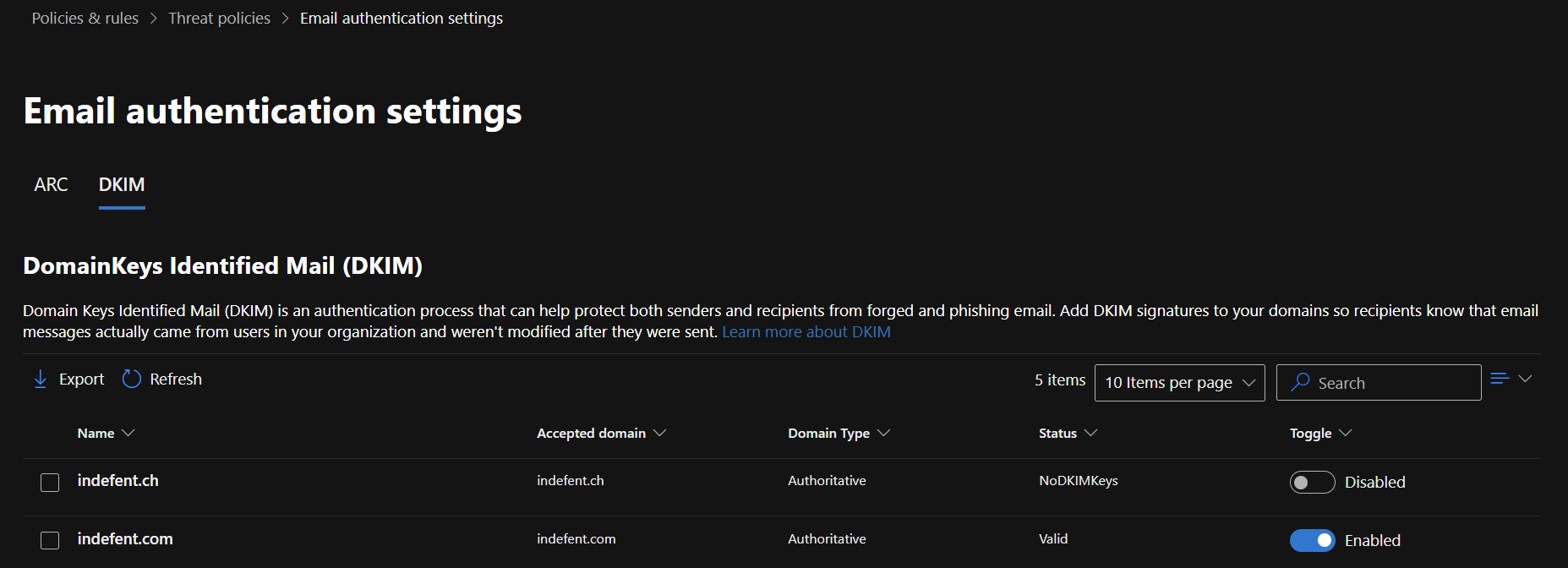
Email authentication settings manage ARC (Authenticated Received Chain) and DKIM (DomainKeys Identified Mail) to ensure email authenticity.
ARC: Used when emails pass through forwarding services or distribution lists, ARC preserves the original authentication results (like SPF or DKIM). This allows Microsoft Defender for Office 365 to trust forwarded messages. Trusted ARC Sealers define which forwarding services are trusted.
DKIM: DKIM cryptographically signs outgoing emails so recipients can verify they come from an authorized sender and haven’t been altered.
Advanced delivery
SecOps Mailbox
This feature allows specific mailboxes to receive emails without filtering by anti-spam, anti-phishing, or other security mechanisms. It is typically used by security analysts or SOC Teams to forensically analyze original messages. Emails sent to these mailboxes are still included in logging and reporting, but are not blocked or altered in any way.
Phishing Simulation
This feature lets you configure IP addresses, sender domains, and URLs for phishing simulations. Emails from these sources are delivered unfiltered, allowing realistic testing through tools like Attack Simulation Training or third-party platforms.
Enhanced filtering
When emails are forwarded to Microsoft 365 through an inbound connector (for example, from an on-premises email gateway), Defender for Office 365 typically sees only the IP address of the gateway, not the original sender’s IP.
Enhanced Filtering ignores the connector’s IP address and analyzes message headers, such as the Received: fields, to determine the email’s true origin. It ensures accurate SPF, DKIM, and DMARC checks, reduces false positives for legitimate messages, and is especially valuable in hybrid setups with on-premises relays and Microsoft 365.
As a prerequisites an inbound connector must first be configured in Exchange Online. Enhanced Filtering must then be explicitly enabled on this connector to ensure that incoming messages are accurately assessed for their true origin.
Quarantine policies
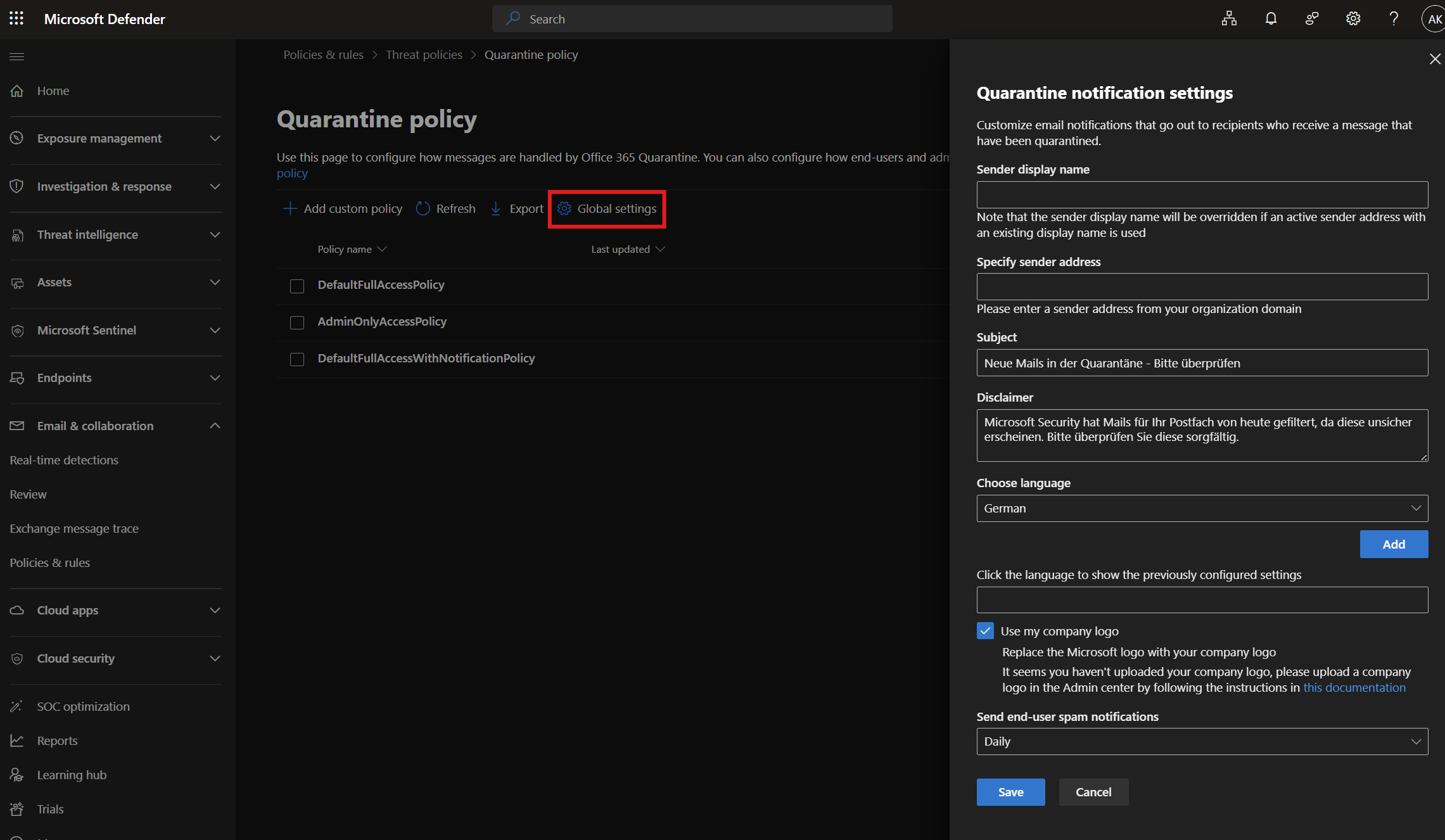
| Setting | Recommended Value |
|---|---|
| Subject | Neue Mails in der Quarantäne - Bitte überprüfen |
| Disclaimer | Microsoft Security hat Mails für Ihr Postfach von heute gefiltert, da diese unsicher erscheinen. Bitte überprüfen Sie diese sorgfältig. |
| Choose language + Add | German |
| Use my company logo | Enable |
| Send end-user spam notifications | Daily |
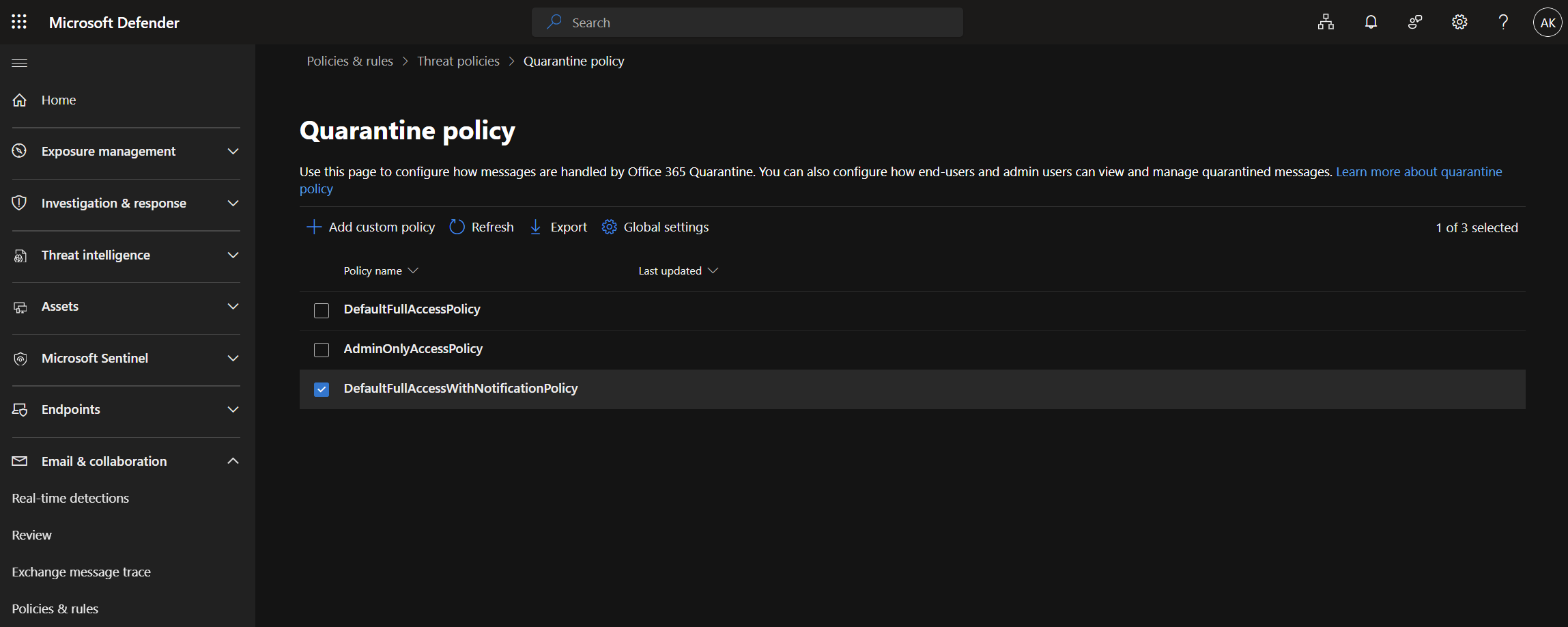
| Policy Name | Description |
|---|---|
| DefaultFullAccessPolicy | Users have full access to view and manage their quarantined messages. |
| AdminOnlyAccessPolicy | Only administrators can view and manage quarantined messages. |
| DefaultFullAccessWithNotificationPolicy | Users have full access and additionally receive notifications about quarantined messages. |
Security Admins - If your organization requires that Helpdesk or L1 technicians review and release emails, this should be handled via RBAC by assigning a Quarantine Administrator role. I’ve often seen Security Admin privileges granted for this purpose, which is overkill and violates the principle of least privilege.
🛡️ Final Thoughts
Defender for Office 365 is a very powerful service within the Microsoft Defender suite. However, in many larger organizations, I often see IT teams using default policies without fully understanding it, leaving significant protection potential unused or using it completely misconfigured. Often, it’s not clear what each setting does or why it’s important.
I hope this blog post has helped provide some clarity and guidance, so organizations can get the most out of their Defender for Office 365 deployment.
Alright - what was meant to be a short blog ended up a bit more extensive than planned. Maybe the title (fast) doesn’t quite deserve its name here 😆
⚠️ Disclaimer
The configurations shared in this post reflect my personal approach to solving this specific challenge. Every environment is unique, so adapt these solutions to fit your needs.
Happy configuring! 😊


