
Over the years, I’ve assessed dozens of Intune environments, and one pattern keeps showing up: many IT teams try to create their own endpoint security policies from scratch.
At first glance, this makes sense. Some organizations have to meet specific frameworks, like CIS benchmarks or NIST guidelines. In these cases, I often see them using resources like Open Intune Baseline and honestly, I can recommend it. It’s a solid starting point when you need compliance-aligned policies and don’t want to reinvent the wheel - Kudos to James Robinson and the community ♥️.

But here’s the problem: in a lot of tenants what I actually see is one of three things happening:
- DIY attempts that miss critical settings
Teams try to create their own policies without a structured baseline, and often 50-80% of the important settings are missing. They cover some basics firewall settings, etc. but critical protections settings are overlooked. (Mostly halfbaked policies assigned to a device group and not as a baseline on all devices) - Half-measures that create risk
Inconsistent deployments leads to a patchwork environment, where devices are neither fully secure nor compliant because there is no baseline policy (mostly scoped to a group but not to all devices). - Policies ignored entirely
Even though Intune Security Baselines are built-in and ready to use, some teams skip them completely, assuming windows defaults are enough or fearing that strict settings will break workflows. And no - Microsoft Intune isn’t just for deploying apps; that should already be obvious.

Security baselines in Intune exist for a reason. They save time, reduce mistakes, and cover the high-impact settings that are proven to prevent the majority of endpoint attacks. Creating your own policies is okay especially if compliance frameworks demand it but don’t forget the baseline foundation, or you risk leaving massive gaps.
Security baselines are Microsoft’s pre-configured groups of policies designed to enforce best practices for Windows devices (and other Microsoft products).
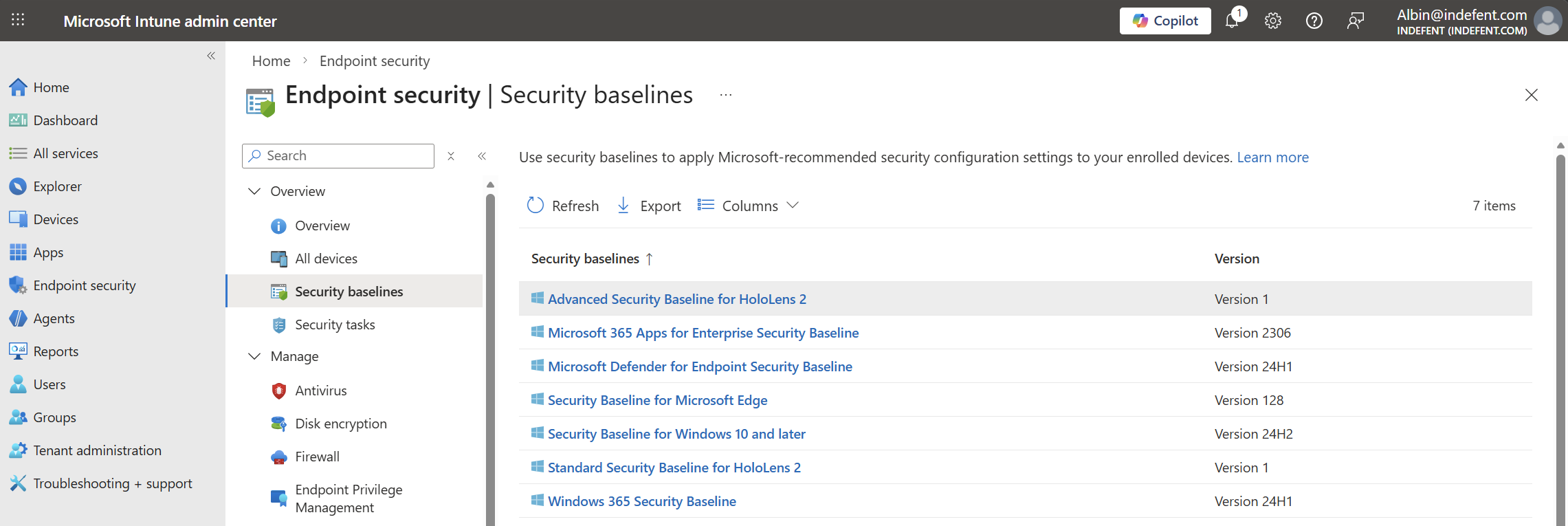
Think of them as a starting template for security hygiene. They cover things like:
- Password and account lockout policies
- BitLocker encryption settings
- Windows Defender settings
- Edge security settings
Instead of manually configuring dozens of policies, baselines give you a proven, Microsoft-backed default following the Microsoft Security Configuration Framework - a solid starting point.
Microsoft Security Configuration Framework (SecCon-Framwork)
Before diving into Intune Security Baselines, it’s important to understand the Microsoft Security Configuration Framework (MSCF).
The Microsoft Security Configuration Framework, available in the Microsoft Security Compliance Toolkit, can serve as a standard for endpoint security. It provides a foundation for implementing a range of security measures designed to harden, protect, and maintain both the operating system and applications.
What the framework offers:
- Standardized security policies: A set of vetted configurations for Windows, Office, and other Microsoft products.
- OS hardening: Protection against known attacks through predefined settings.
- Organizational best practices: Policies that support compliance while maintaining usability.
- Foundation for Intune Security Baselines: These recommendations can be directly used as templates for Intune policies.
In short: The framework acts as a blueprint for secure endpoints. Organizations that follow it can configure operating systems to be hardened, secure, and stable through the security control classification without building everything from scratch.
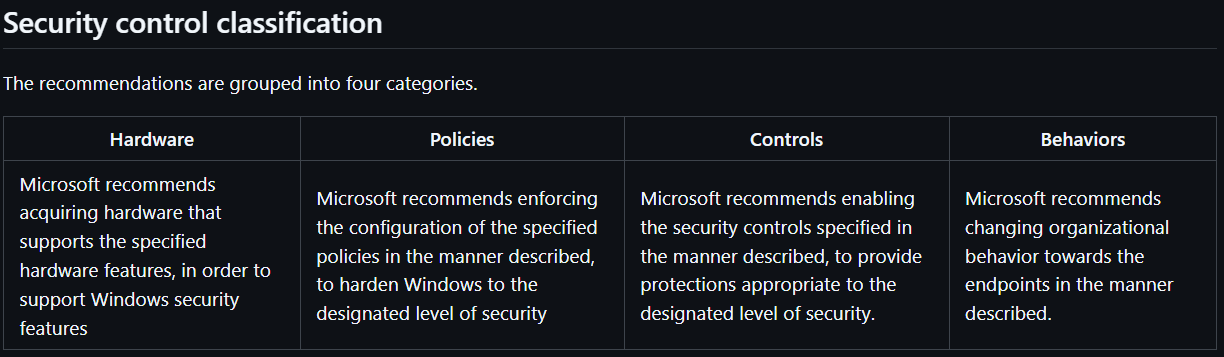
To help IT teams prioritize endpoint hardening, Microsoft has introduced a new taxonomy for Windows security configurations. This initial preview lists recommended hardware, policies, controls, and behaviors not as a final product, but to gather feedback from customers and security experts to refine the framework and identify opportunities for automation.
This new framework is affectionately called the SecCon Framework and it organizes devices into five distinct security levels.
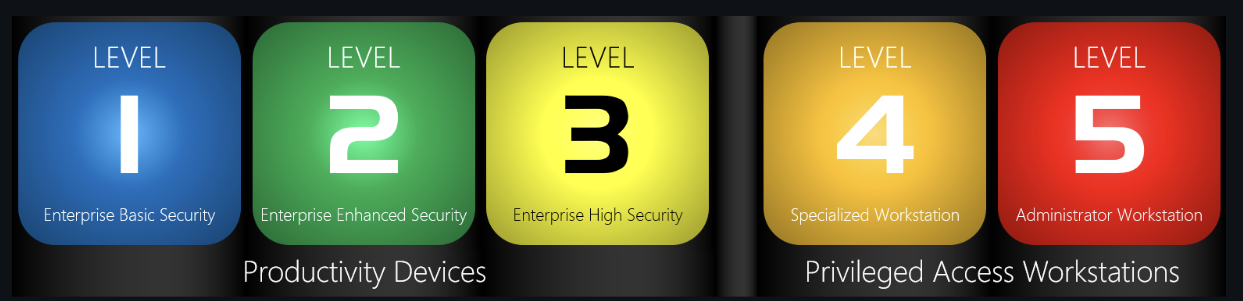
SecCon Framework Overview
Level 1: Enterprise Basic Security
- Recommended as the minimum baseline for any enterprise device.
- Controls are straightforward and designed to be deployable within 30 days.
Level 2: Enterprise Enhanced Security
- For devices handling sensitive or confidential information.
- Some controls may affect app compatibility and typically require an audit-configure-enforce workflow.
- Deployable within approximately 90 days, suitable for most organizations.
Level 3: Enterprise High Security
- For organizations with larger or more advanced security teams, or users at uniquely high risk (e.g., handling data that could significantly impact stock value if stolen).
- Recommended for organizations likely to be targeted by well-funded and sophisticated attackers.
- Implementation can be complex (e.g., removing local admin rights) and may extend beyond 90 days.
- Targets developers and testers, who are high-value targets due to access to servers, systems, and critical business functions.
Level 5: Administrator Workstation
- For administrators of identity or security systems, who pose the highest risk to the organization.
The SecCon framework divides devices into:
- Productivity Devices – Levels 1, 2, and 3
- Privileged Access Workstations – Levels 4 and 5
Microsoft recommends reviewing and categorizing your devices, and then configuring them according to the prescriptive guidance for the security level you want to achieve.
The 20/80% Rule in Security Baselines
When working with Intune security baselines, I like to think in terms of the Pareto Principle:
With 20% of the effort, you can achieve 80% of the security value.
This approach allows IT teams to quickly harden devices and still cover the majority of risks without designing own policies for a basic hardening. The configuration is dead simple:
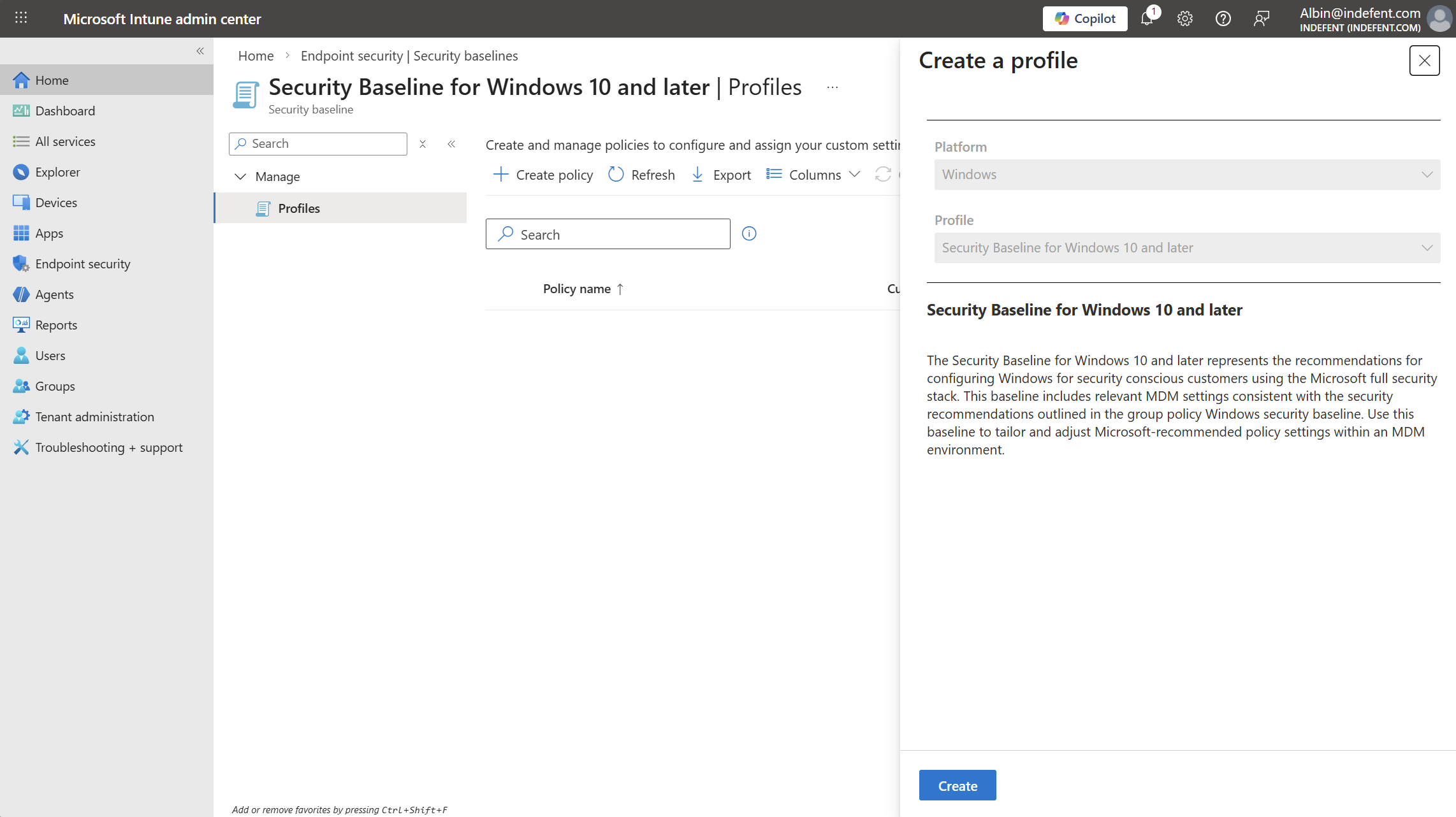
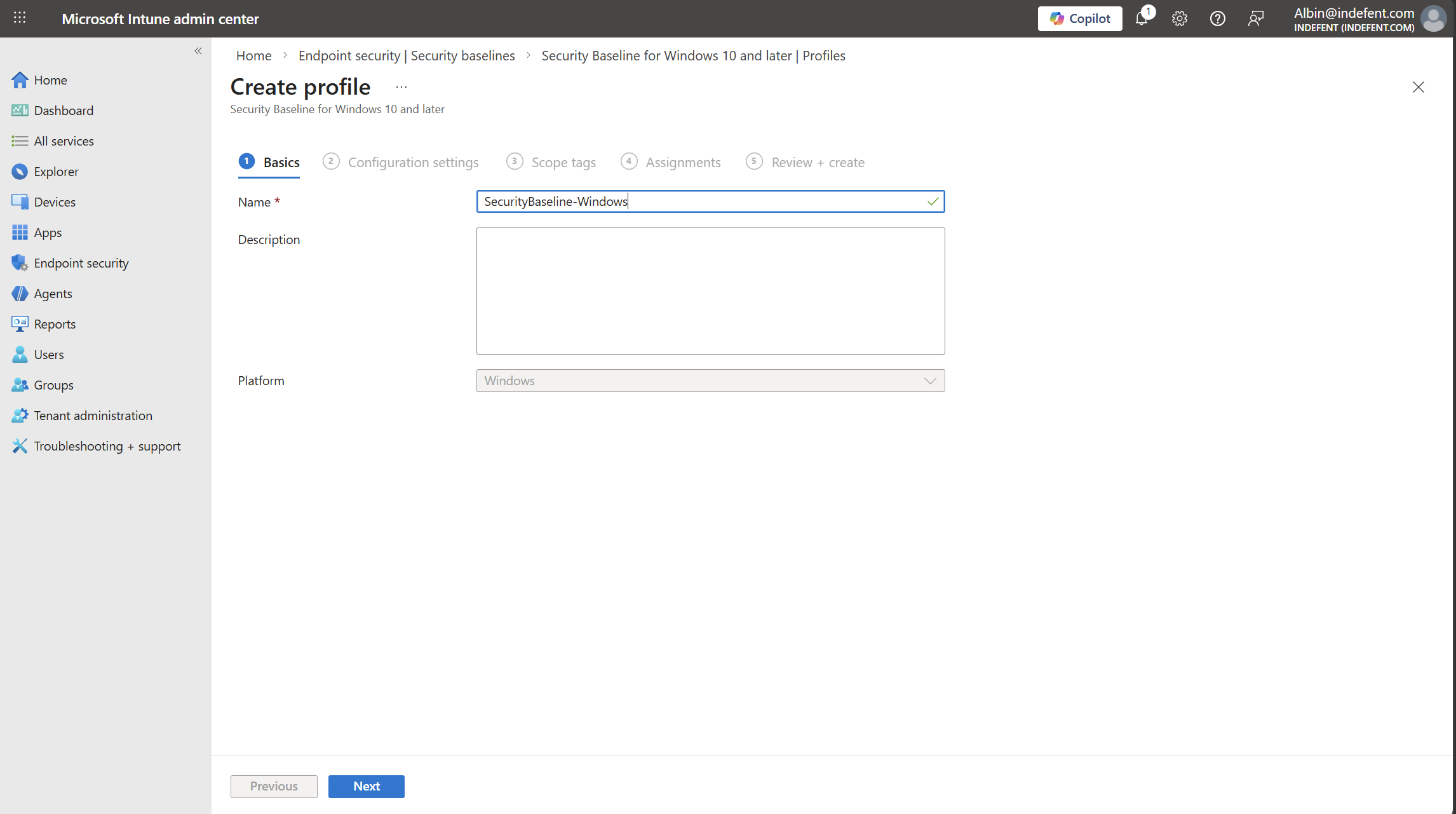

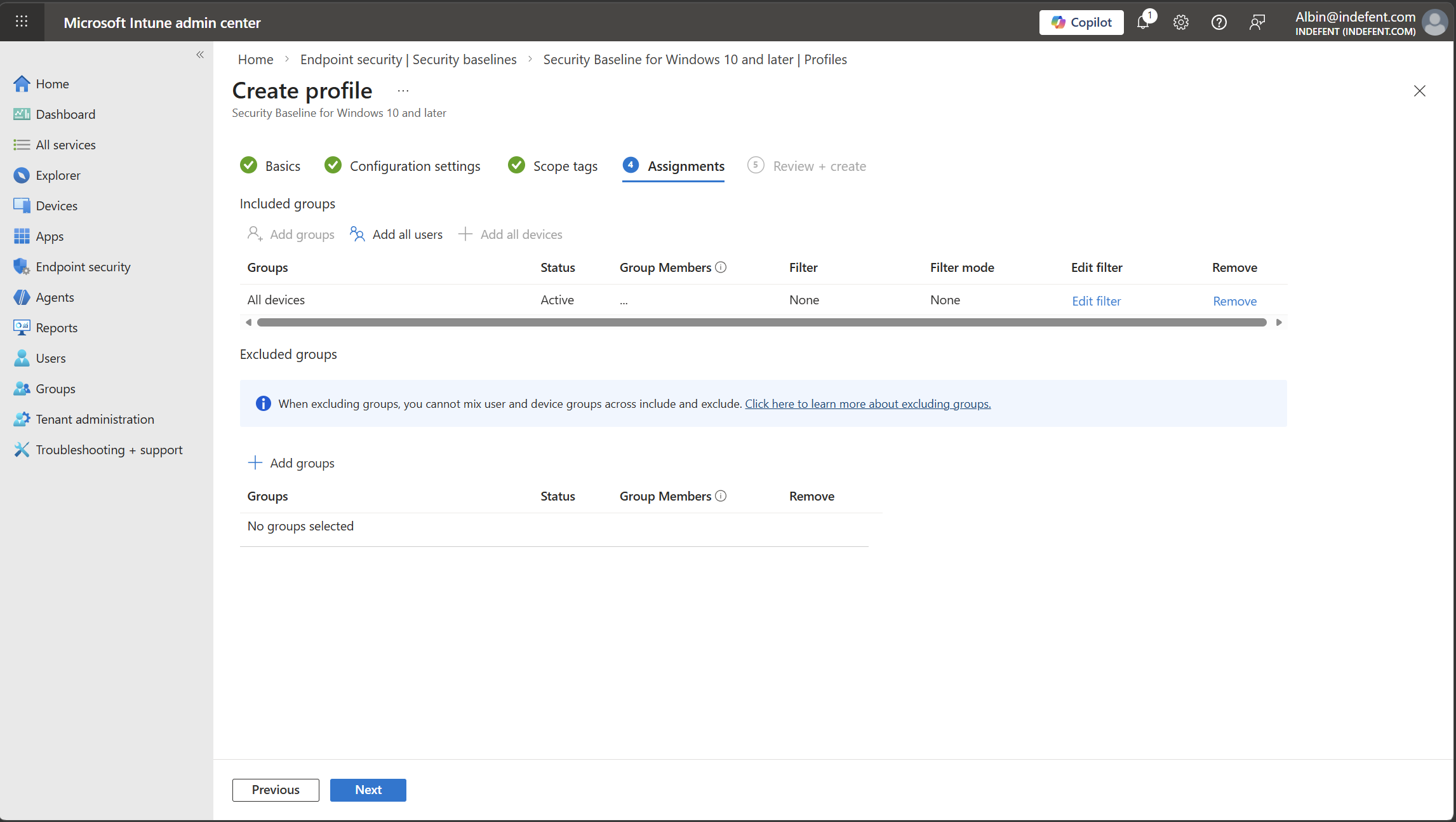
Keep a record of every baseline modification and make sure there’s a clear process from start to finish when working with exclusions.
I recommend using the following baselines as a starting point:
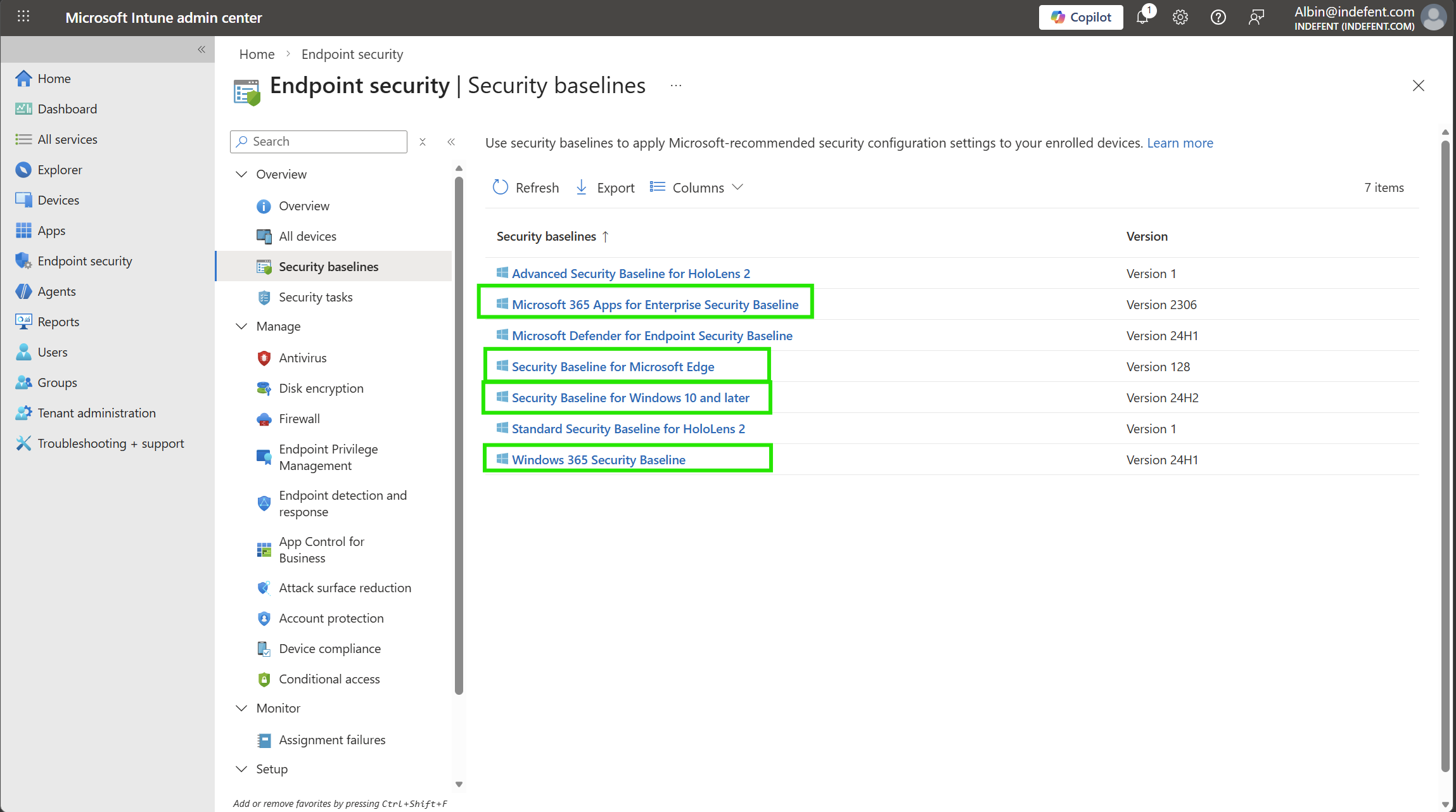
| Security Baseline | Typical Settings Included |
|---|---|
| Microsoft 365 Apps for Enterprise Security Baseline | Office macro security settings, Cloud content access controls, Privacy and telemetry settings |
| Security Baseline for Microsoft Edge | SmartScreen filter- Pop-up and download restrictions, Password manager settings, Security and privacy configurations (cookies, tracking, etc.) |
| Security Baseline for Windows 10 and later | BitLocker encryption policies, Windows Defender Antivirus and firewall, Account protection and password policies, Windows Update configuration, Attack surface reduction (ASR) rules, Device guard / app control settings |
| Windows 365 Security Baseline | Combines Windows 10/11 security baseline settings, Defender settings- Cloud and compliance-related controls for Windows 365 |
But What About the Remaining 20%?
Security baselines aren’t some kind of magic solution they’re not the eighth wonder of the world. They are, however, a solid starting point and, for example, for MSPs, a great way to cover all tenants consistently.

That said, they don’t cover everything. Security baselines are not fully CIS-compliant by default while they follow Microsoft’s recommended best practices for Windows, Edge, and Microsoft 365 apps, some CIS controls (like advanced audit settings or strict registry tweaks) may still need to be applied manually.
This is the part that requires your full concentration and effort: implementing the remaining 20% of controls to be CIS compliant usually takes about 80% of the time, because it involves fine-tuning, testing, and adapting policies to your organization’s specific needs. Starting with the baseline gives you a strong foundation, and then you can invest the necessary effort to cover the high-risk, high-value areas.
Deployment Methodologies
But how do you deploy these settings without worrying about breaking anything?

Not all controls are the same, so the recommended approach depends on whether a control can be audited before enforcing it. There are two main methods according to the SecCon: Rings and Audit/Enforce.
1. Rings – Gradual Deployment
Some controls can’t be tested in audit mode, so it’s safer to roll them out slowly using “rings.” Think of rings as stages, starting small and expanding gradually.
- Test Ring – Start in a lab environment and test apps that are critical.
- Pilot Ring – Deploy to a small group (2–5% of devices) to catch any issues.
- Fast Ring – Expand to the next 25% of users once the pilot is stable.
- Slow Ring – Deploy to the rest of the organization.
This method helps avoid surprises and ensures devices don’t break during rollout.
2. Audit / Enforce – Test Before Locking Down
If a control supports audit mode, you can test it first without enforcing it. This gives insight into how it will affect users and apps.
Steps:
- Audit – Turn on the control in audit mode and collect data.
- Review – Check the audit results and decide if any exceptions are needed.
- Enforce – Apply the control for real, including any exceptions.
This way, you know what impact the control will have before making it mandatory.
3. The MSP Way of Deploying Baselines (Non-SecCon)
In my experience working at an MSP, there’s often no luxury of time to test everything perfectly over multiple clients. You can’t realistically spend hours validating every baseline for every customer when you’re managing dozens or hundreds of client endpoints through X environments.
So what’s the practical approach? I call it the MSP way:
- Define test users and devices – Pick a small group of people and endpoints that can safely receive the new baseline.
- Assign the baseline to them first – This is your “canary” deployment.
- Communicate openly – Let them know something might break, and make it easy for them to report issues. (Ticketing, MS Forms you name it. Make sure your L1/support team is ready to act quickly on these issues, as they could prevent the customer from working if you dont use dedicated testing devices.)
This approach lets you catch problems early without risking 100 or more endpoints. It’s efficient, practical, and keeps your customers happy because you’re not billing them for hours of theoretical testing.
Sure, you could follow the full SecCon rings and audit/enforce methodology as an MSP but ask yourself: do you have a customer willing to pay X hours just for testing baselines? Most of the time, the answer is no. The MSP way balances safety, efficiency, and client expectations. And if the answer is yes - lucky you.

The Bottom Line
- Use rings for controls that can’t be audited.
- Use audit first for controls that can.
- Consider the MSP way for MSP deployments over multiple clients
Updating Security Baselines
New versions of the security baselines are released regularly:
- Windows OS – once per year with the major update
- Microsoft 365 Apps – usually twice per year
- Microsoft Edge – approximately twice per month
You can find the version updates here: Microsoft Security Baselines Blog
When a security baseline update is released, it becomes visible in Intune. At that point, you can review the setting and upgrade it to the new version to ensure your devices remain compliant with the newest settings.
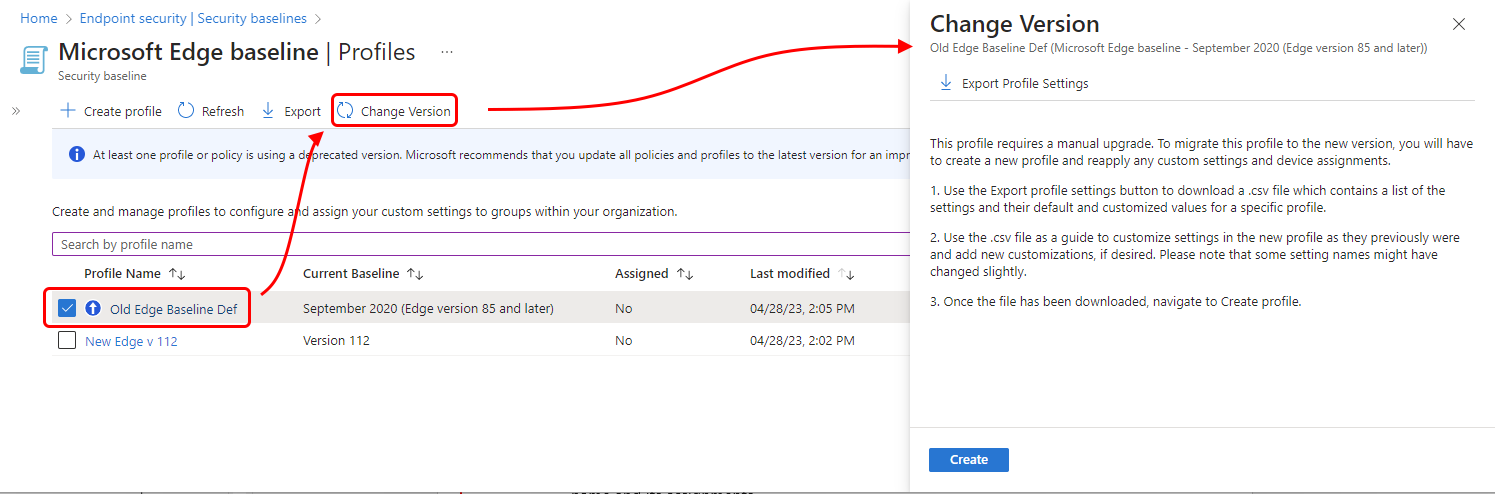
When you update a security baseline, it’s crucial to know this:
Intune does not automatically carry over your current settings.
This behavior is intentional and part of the design.
Again - Remember: Your settings from the current/last version are not carried over to the newly created one.
Analyzing the policies
Once you’ve applied your baseline or settings profiles, it’s smart to verify that everything landed correctly. This ensures your devices are actually following the security framework and haven’t missed any critical settings.
- HardeningKitty - A free tool by Michael Schneider that checks client settings against a reference template. Simon Eriksen has a good blog about auditing it with Intune:

This lets you quickly assess and harden a Windows system while keeping the process straightforward.
Performing this step before you declare full compliance can save a lot of troubleshooting later and gives confidence that your security controls are actually working.
⚠️ Disclaimer
The configurations shared in this post reflect my personal approach. It provides best practices and recommendations only and comes without any liability. Always align them with your enterprise security strategy.
Happy configuring! 😊


